
A URL source downloads a file from a direct HTTP/HTTPS link. The same field can also accept a full FTP/FTPS URL when the supplier gives the path as one string, for example ftp://login:password@ftp.partner.example:21/export/catalog.xml. Use it for price lists, XML/YML catalogs, JSON exports, CSV files, or spreadsheets.
For an FTP/FTPS URL, the file name can be a mask instead of an exact name: ftp://login:password@ftp.partner.example/export/file*.xml. The mask uses * for any sequence of characters and ? for exactly one character. For example, file-?.xml matches file-1.xml, but not file-12.xml; file-???.xml matches file-001.xml. If several files match, Eofferix selects the newest file by modification time on the FTP/FTPS server.
The link must return the actual file, not a login page, preview page, or HTML wrapper. If HTTP/HTTPS access requires login, password, token, cookies, or custom headers, use Authorized URL source.
Where To Select File By URL
Open Sources, click New source, and choose File by URL. Use a source name that clearly separates this link from other supplier links.
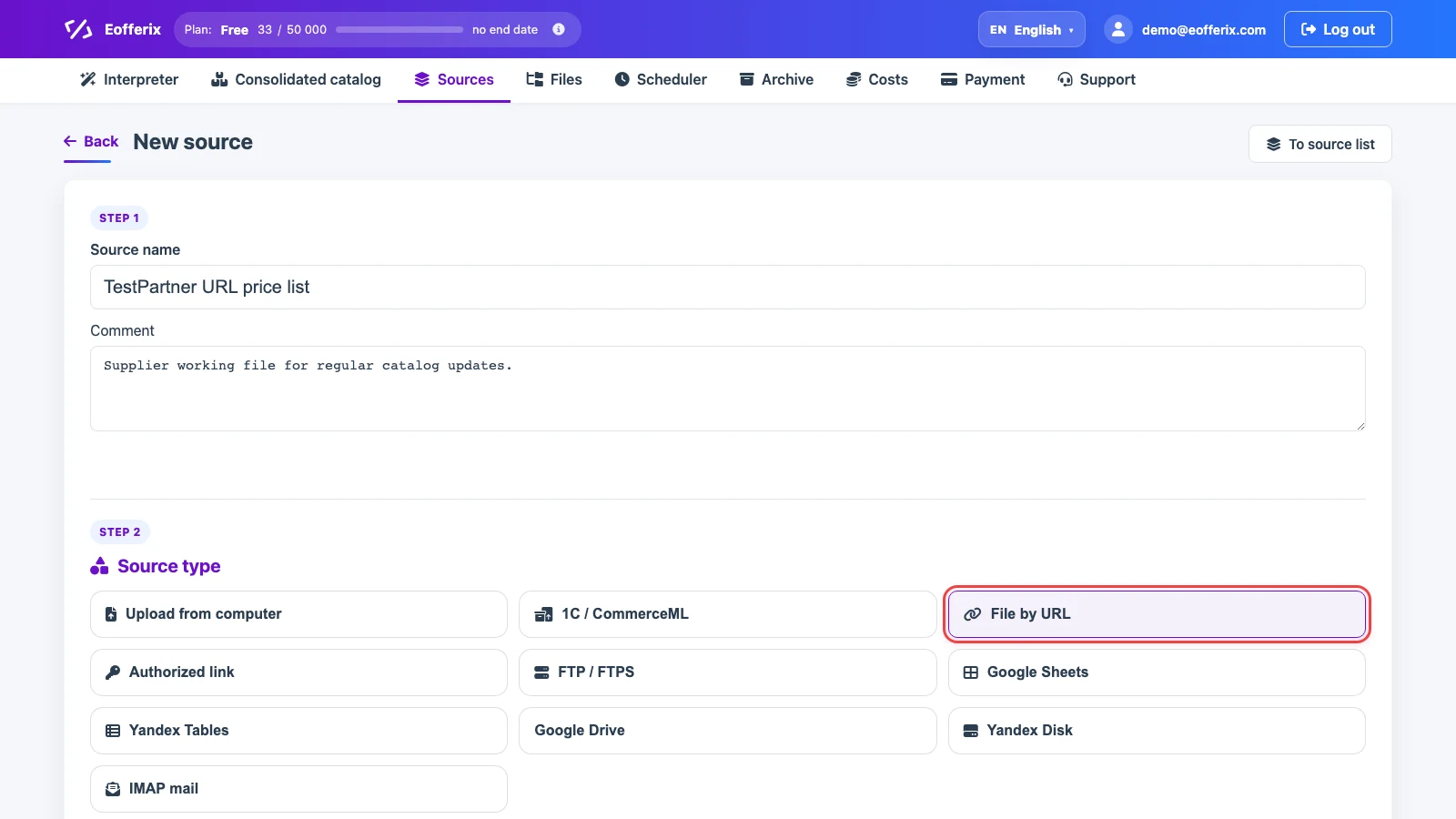
URL Setting
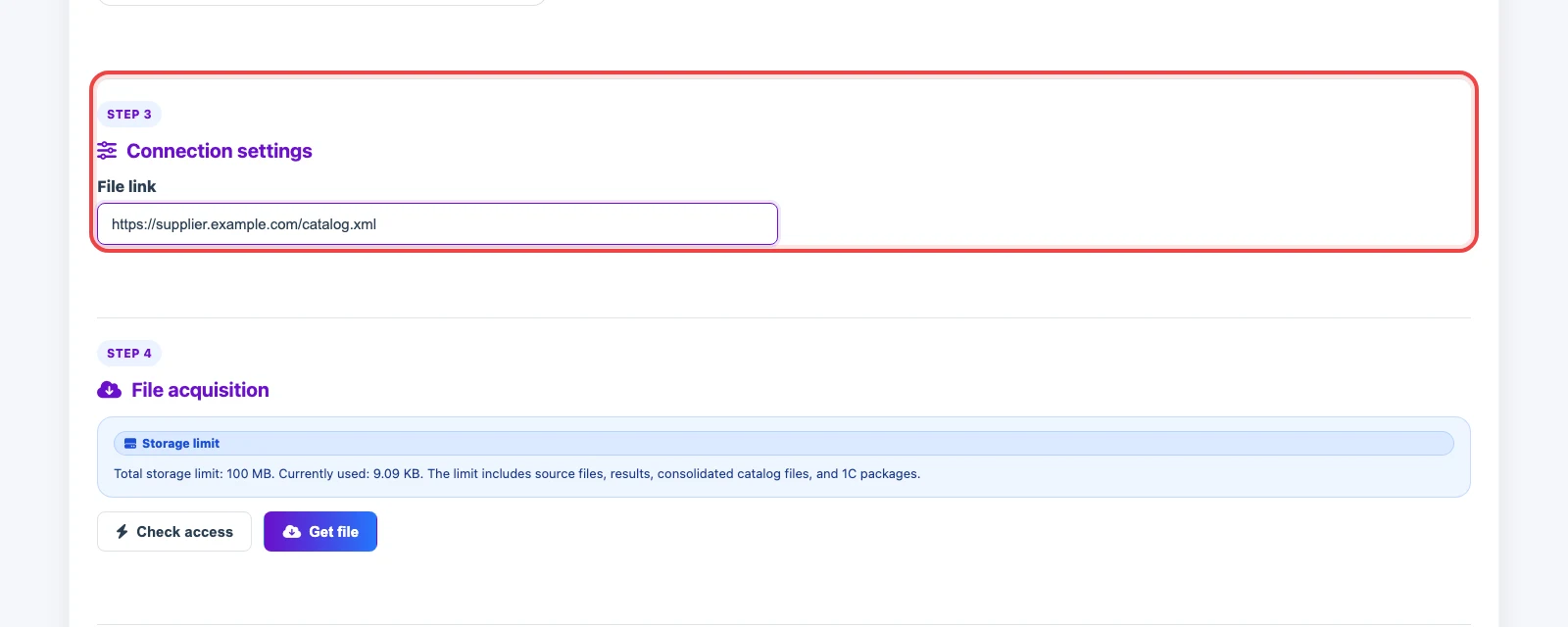
In File URL, paste the full URL, for example https://supplier.example.com/catalog.xml or ftps://login:password@ftp.partner.example/export/file*.xml. The link must be reachable by Eofferix and return a supported file: XML/YML, JSON, CSV, XLS, XLSX, XLSM, or a ZIP archive with supported content.
If the link is temporary and expires quickly, the source stops updating after it expires. For regular updates, use a permanent link or an authorization-based source.
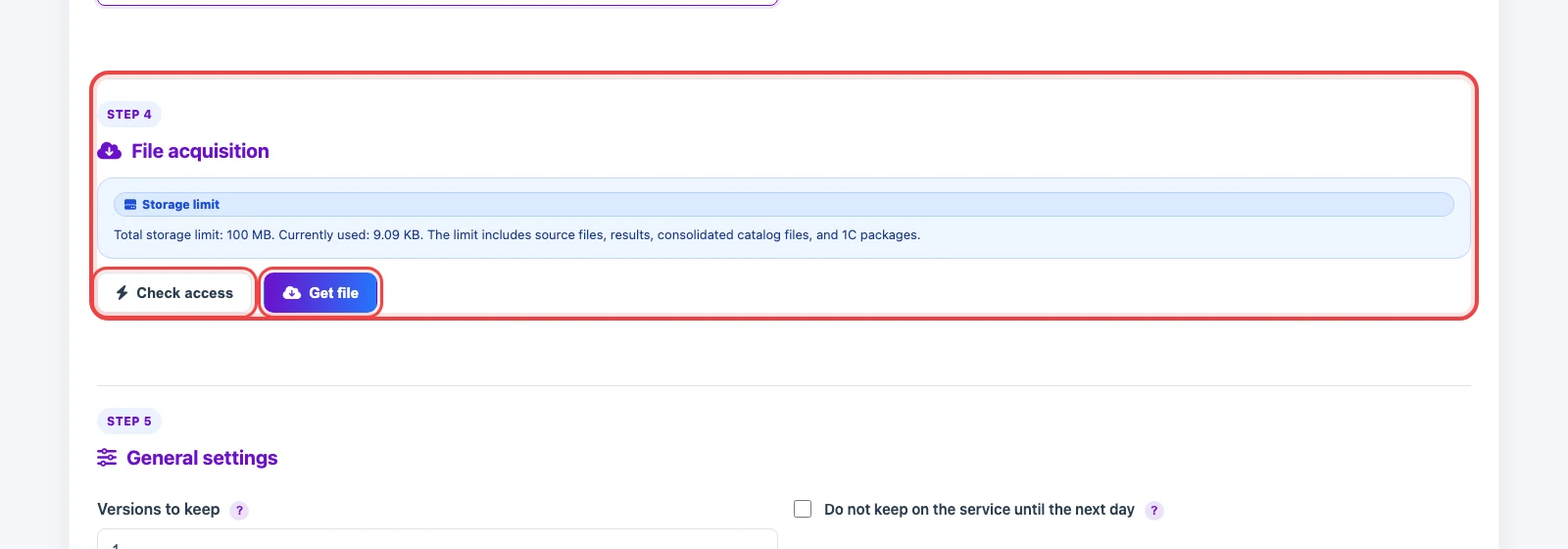
Checking Access And Getting The File
Click Check access to verify that the link opens and returns a file. If the response is an HTML page, Eofferix shows an error. Usually this means a login page, download protection, or a preview URL instead of a file URL.
Click Get file to save the current version as the source working file. After that, you can connect the source to an import profile and configure the snapshot, fields, and transformations.
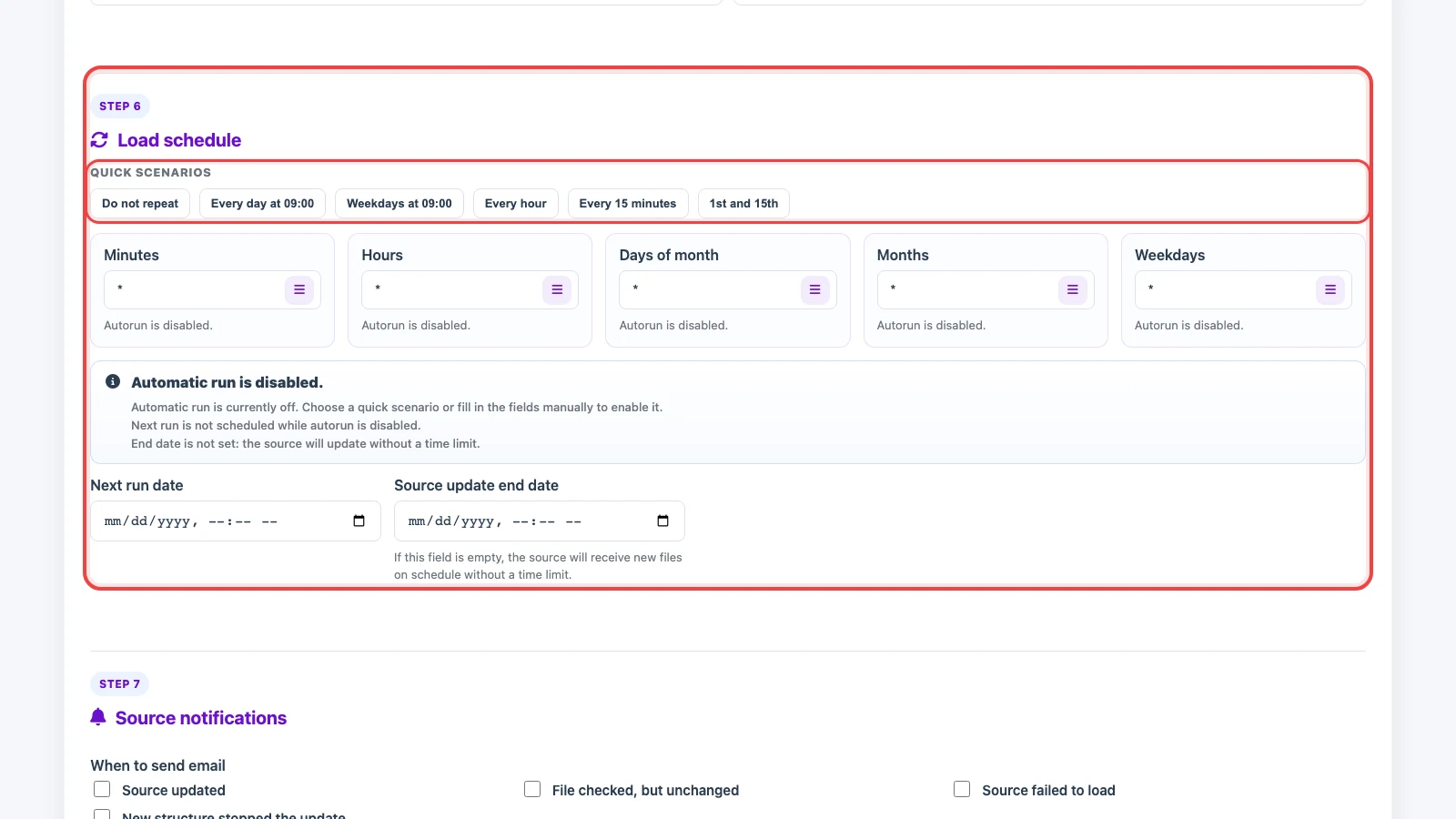
Update Schedule
Use a schedule when the supplier updates the file behind the link regularly. Choose a quick preset or manually set minutes, hours, days of month, months, and weekdays. On each run, Eofferix requests the same link again and gets the latest file version.
If the file is identical to the current working version, Eofferix does not save it as a new working file and leaves the source unchanged. This also applies to FTP/FTPS links with a mask: the newest matching file is selected first, then compared with the current version.
Common Error Causes
- The link opens a preview page instead of a file.
- The supplier requires login, cookies, or a token.
- A temporary link has expired.
- The supplier server blocks external downloads or IP access.
- The link returns an archive or format that cannot be parsed as a source.
- The file structure changed and the source was stopped by the guard.
To control changes in columns, nodes, or file structure, use the Source structure change guard.