
A condition in a transformation answers one question: should this rule run now, or should Eofferix skip it and continue with the next rule? For example: if the price is greater than 100, add markup; if the SKU is not empty, add a prefix; if the value contains USD, remove that substring.
The same checks can appear in transformations and in export conditions, but the result is different. A transformation changes a field value. An export condition decides whether a field, row, product, or XML/JSON element appears in the output file.
Where The Condition Is Used
In a transformation row, the condition sits between the value source and the action. Eofferix first takes the value from the selected source, checks the condition, and only then runs the action.
- Source - the current value or another node, attribute, column, or system value.
- Condition - the check: any, equals, greater than, contains substring, empty, regular expression, and other options.
- Condition value - the value used for comparison. Conditions such as "any", "empty", and "not empty" do not need it.
- Action - what to do when the condition is true: replace, remove spaces, increase by percent, do not load the field, and so on.
A condition does not have to use the current field. For example, an Availability value can be changed based on the neighboring stock node, and a price can be changed based on currency or an activity flag.
Before Or After Transformations
Inside a transformation chain, rules run from top to bottom. Each next row receives the result of the previous row. If you need to clean a price from spaces and currency first and then check it as a number, place the cleanup rules above the numeric condition.
Condition Reference
The reference keeps only the useful columns: condition name, when to use it, and how it behaves. A separate Example column is not needed here because practical scenarios are shown below.
| Condition | When to use | Behavior |
|---|---|---|
| any | The rule should always run. | Matches any value, including an empty one. |
| equals | You need an exact match. | Compares the whole value. Letter case matters only when case sensitivity is enabled. |
| not equal | You need to process all values except one. | Matches when the value differs from the specified value. |
| greater than | You need to check a number: price, weight, stock, quantity. | Both sides of the comparison are read as numbers. |
| less than | You need to find values below a threshold. | Works as a numeric check. |
| greater than or equal to | The threshold itself should also match. | Matches a value that is equal to or above the threshold. |
| less than or equal to | The threshold itself should also match. | Matches a value that is equal to or below the threshold. |
| contains substring | You need to find a fragment inside text. | Matches when the specified text is found anywhere in the value. |
| does not contain substring | You need to exclude values with a specific word, code, or fragment. | Matches when the specified text is not present in the value. |
| starts with | The first part of the value matters. | Matches when the value starts with the specified text. |
| ends with | The last part of the value matters. | Matches when the value ends with the specified text. |
| empty | You need to handle empty fields. | A string containing only spaces is treated as empty. |
| not empty | The action is needed only for filled values. | Matches when something remains after trimming spaces around the value. |
| regular expression | You need to check the value by a pattern. | Matches when the regular expression finds a match. |
| not regular expression | You need to process values that do not match a pattern. | Matches when the regular expression does not find a match. |
Practical Example
Below is one XML snapshot fragment and two configuration variants for the same nodes. The animation shows that clicking a snapshot value opens the transformation window for the selected node.
<workbook>
  <sheet>
    <row>
      <SKU>37227</SKU>
      <Name>Garden watering can planter, cream, 13.5x10 cm</Name>
      <Unit>pcs</Unit>
      <Pack>1</Pack>
      <Price>269</Price>
      <Stock>3</Stock>
      <CategoryPath>Home decor / Planters</CategoryPath>
    </row>
  </sheet>
</workbook>
Variant 1: Prepare The Price
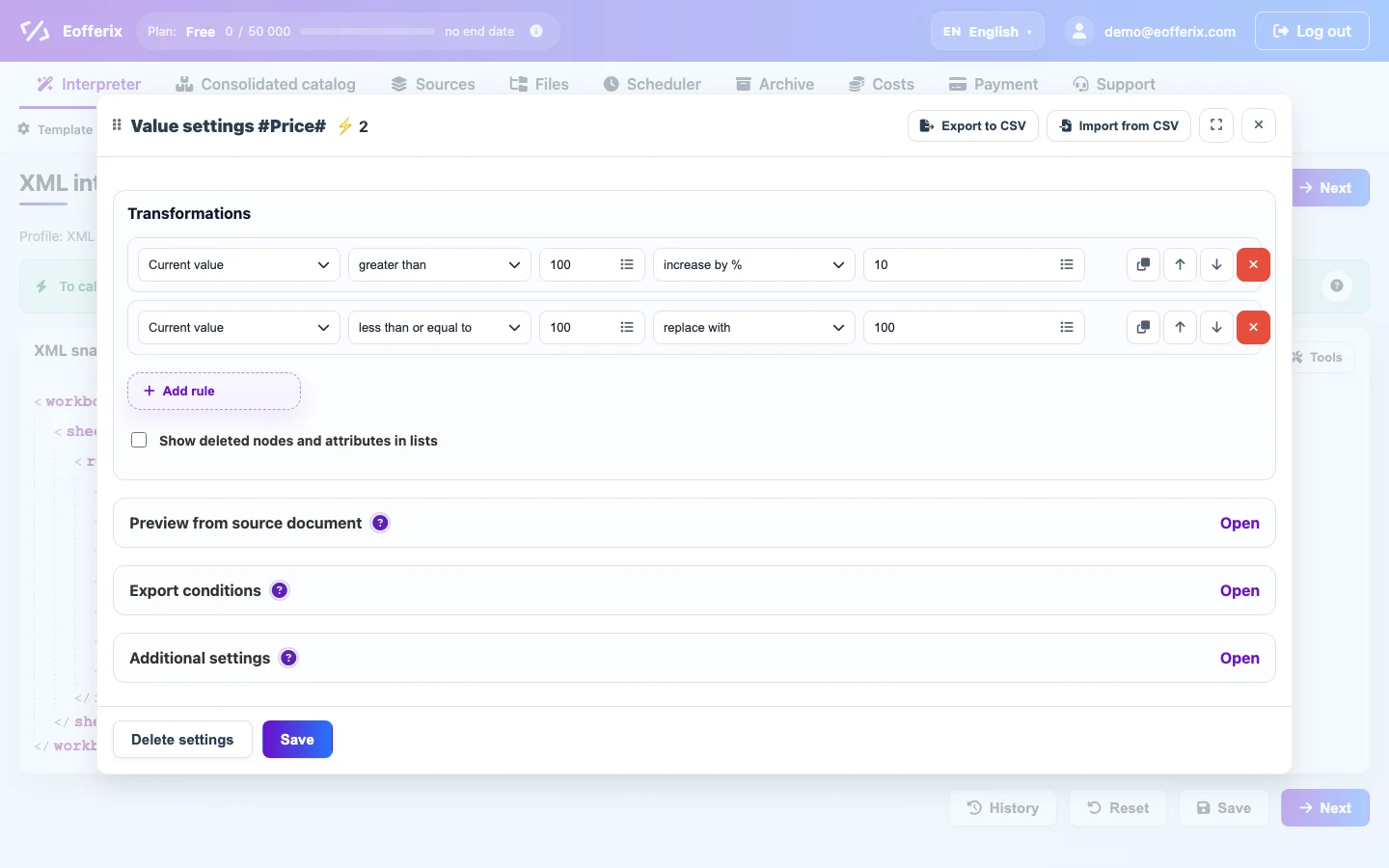
In this snapshot, the price is already numeric: 269. The rule can check the number directly, without first removing currency or spaces.
- Condition greater than with value
100: increase the price by 10%. - Condition less than or equal to with value
100: replace the value with100as the minimum price.
| Before | Rules That Run | After |
|---|---|---|
| 269 | greater than 100, increase by 10% | 295.9 |
| 80 | less than or equal to 100, replace with 100 | 100 |
Variant 2: Convert Stock Into A Status
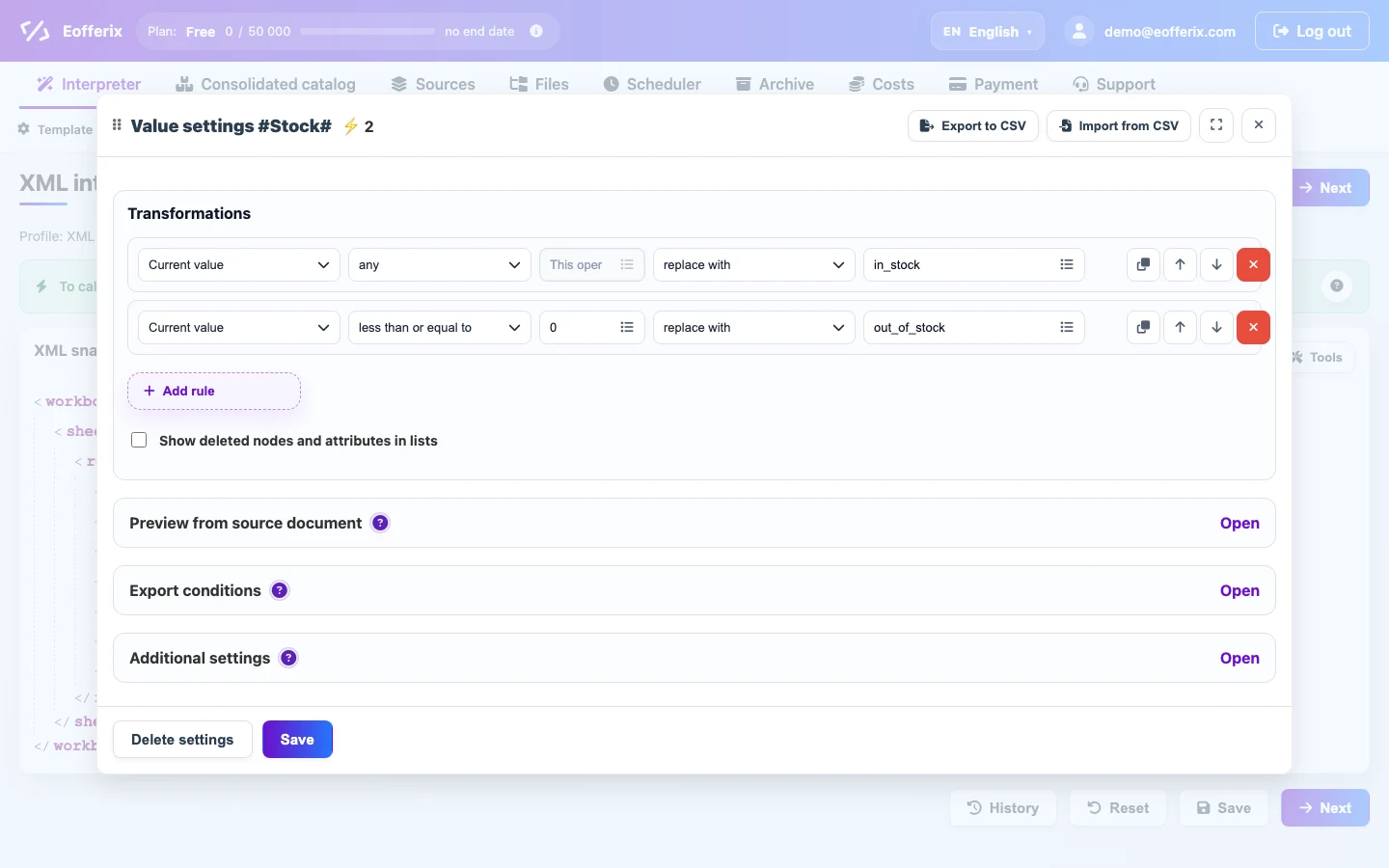
The stock node contains a number. If the receiver needs a text status, the value can be replaced by conditions.
- First, a rule with condition any sets the base value to
in_stock. - If the current value is less than or equal to
0, it is replaced without_of_stock.
| Snapshot Stock | Result |
|---|---|
| 3 | in_stock |
| 0 | out_of_stock |