
The consolidated catalog is the working product database in Eofferix. It stores imported and manually created data: products, offers, sections, properties, prices, stock, images, descriptions, and technical identifiers.
The catalog acts as a working layer between data sources and final delivery. Sources update data according to their profile rules, and the consolidated catalog can then be exported, sent to an application, or adjusted manually where needed.
How to open the consolidated catalog

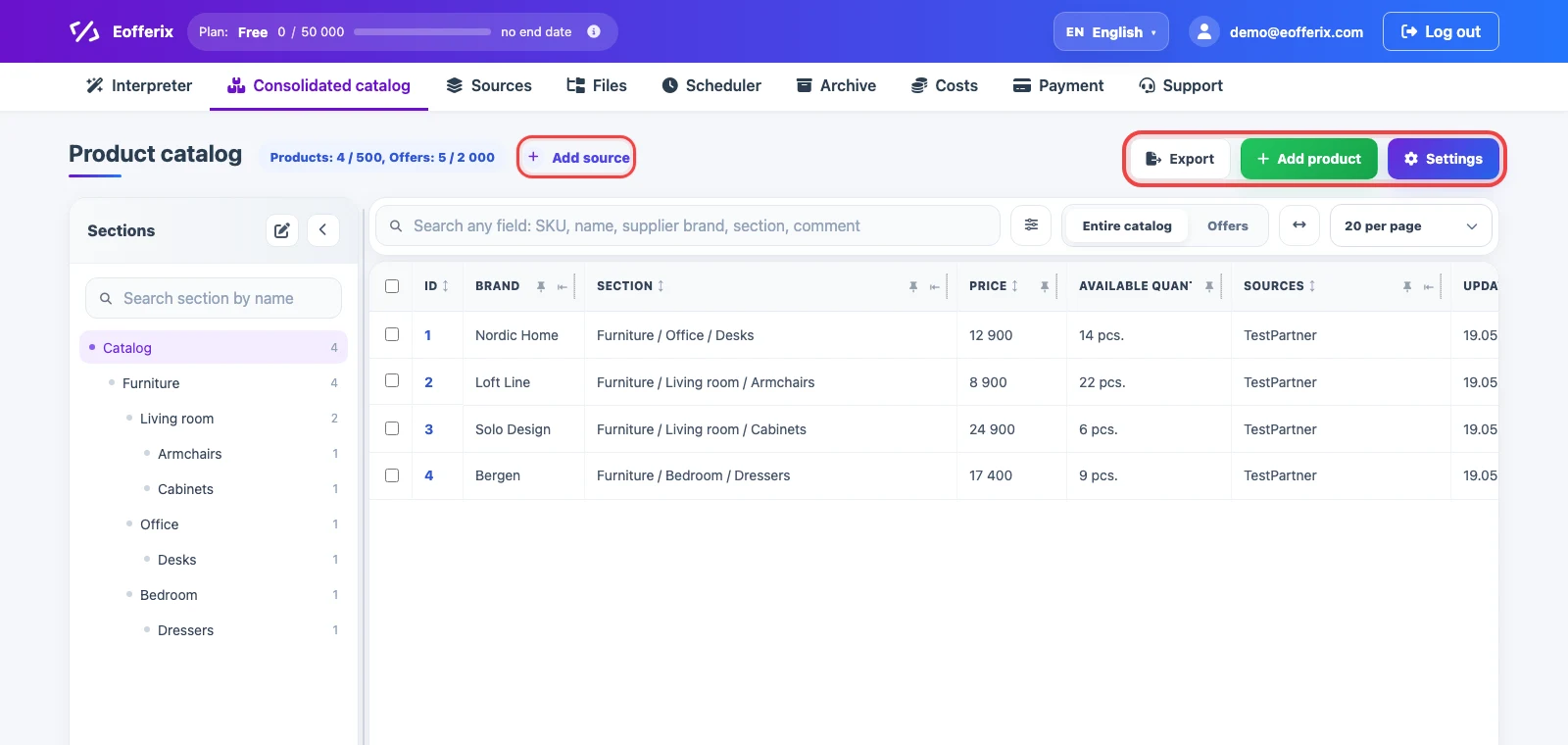
Open Consolidated catalog in the top menu. The screen shows product and offer counters, the section tree, the catalog table, and the main actions: add a source, export data, add a product manually, or open settings.
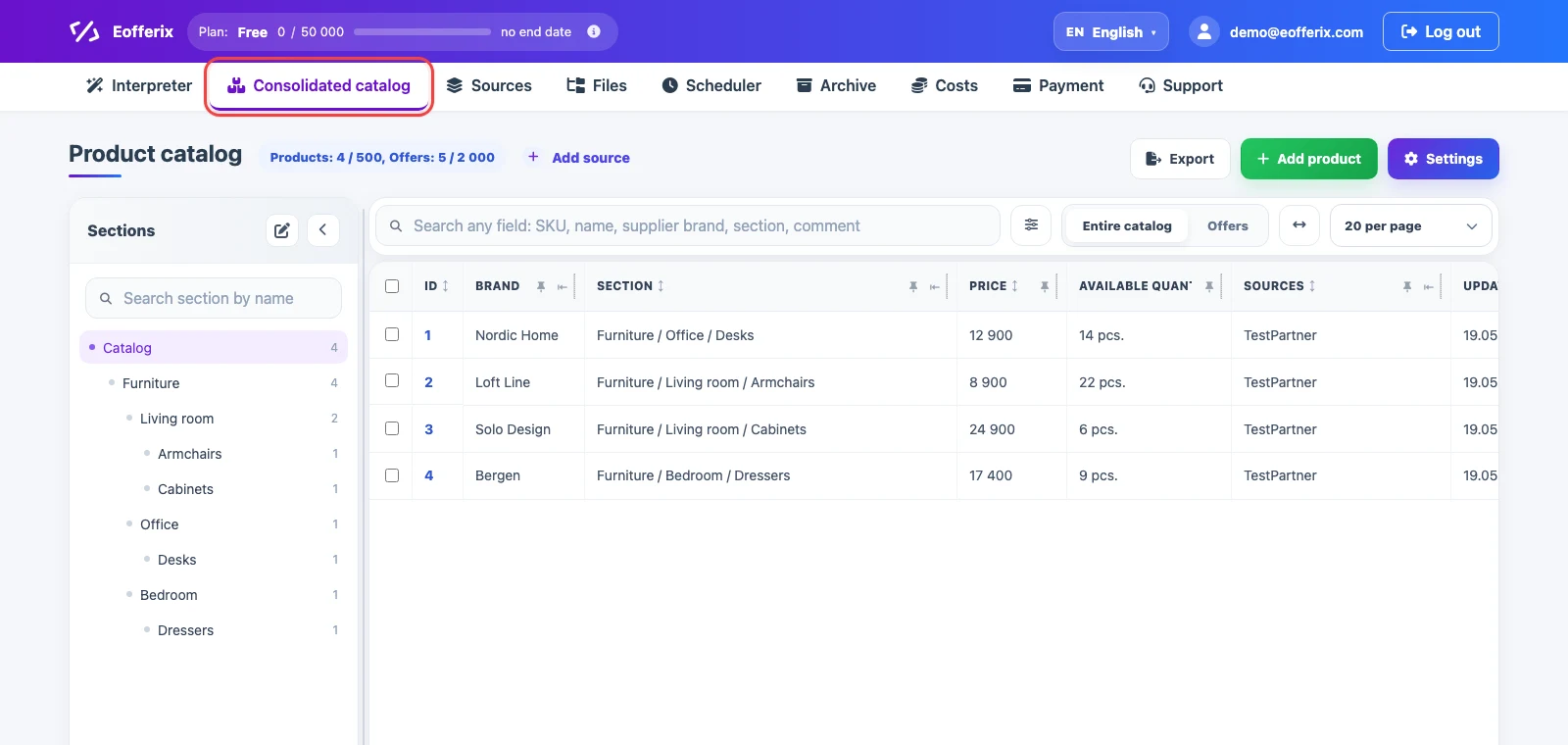
What is shown on the main screen
The section tree is on the left. It helps you open the needed catalog branch and see how many products are linked to each section. The table is on the right, with search, filters, the products/offers switch, column settings, and pagination.
Search covers the main catalog fields: ID, SKU, external code, name, supplier brand, and section. The filter button narrows the list, and the table shows only the columns enabled in the current view.
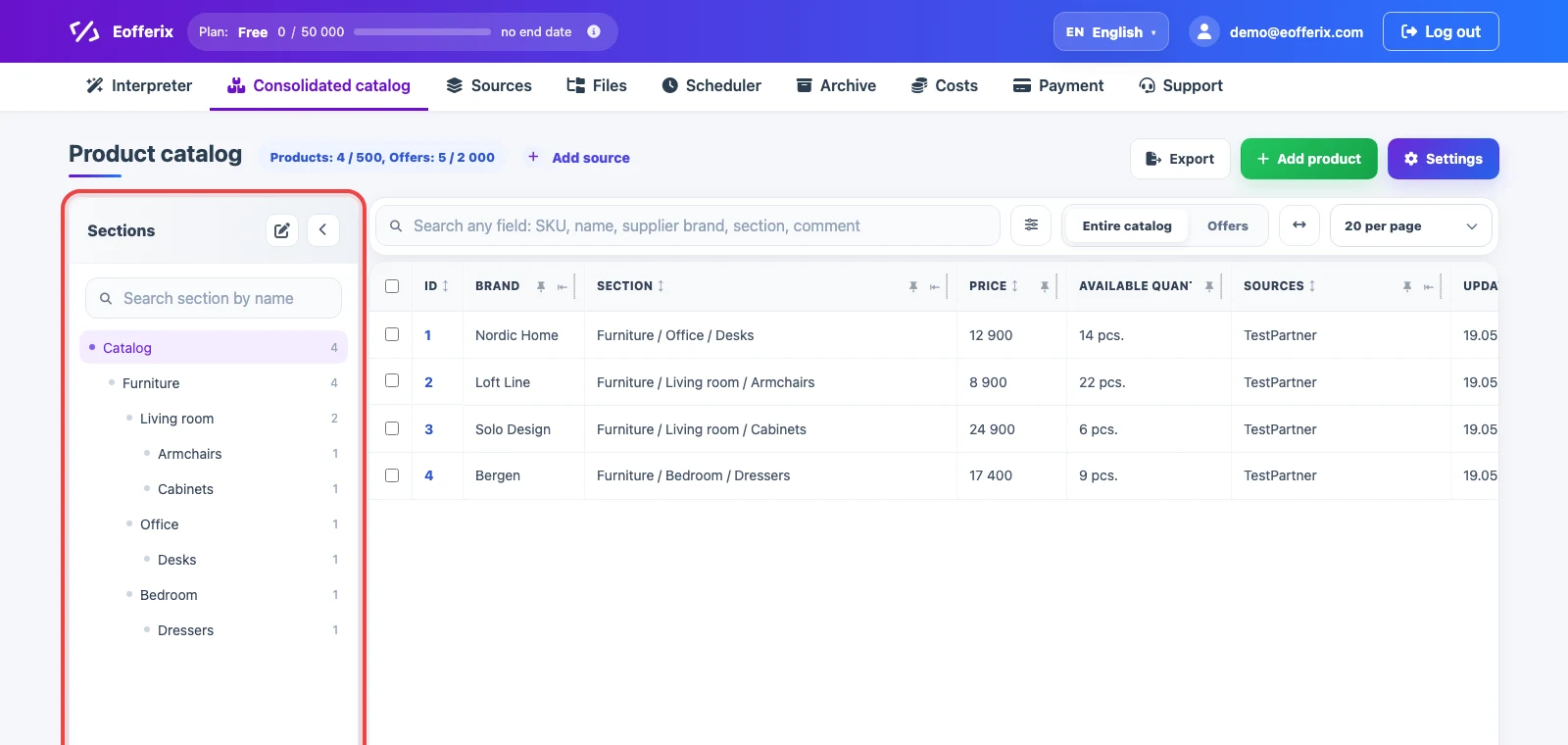
Search, filters, sorting, and table width
Global table search is useful for quick text lookup by name, SKU, external code, brand, section, and other fields available in the current view. For more precise narrowing, use the filter button next to search.
Click a column header to sort rows by that field. The arrow next to the column name shows the sort direction. Clicking again changes the direction. Headers also include controls for pinning and display behavior, so important fields can stay visible while you scroll horizontally.
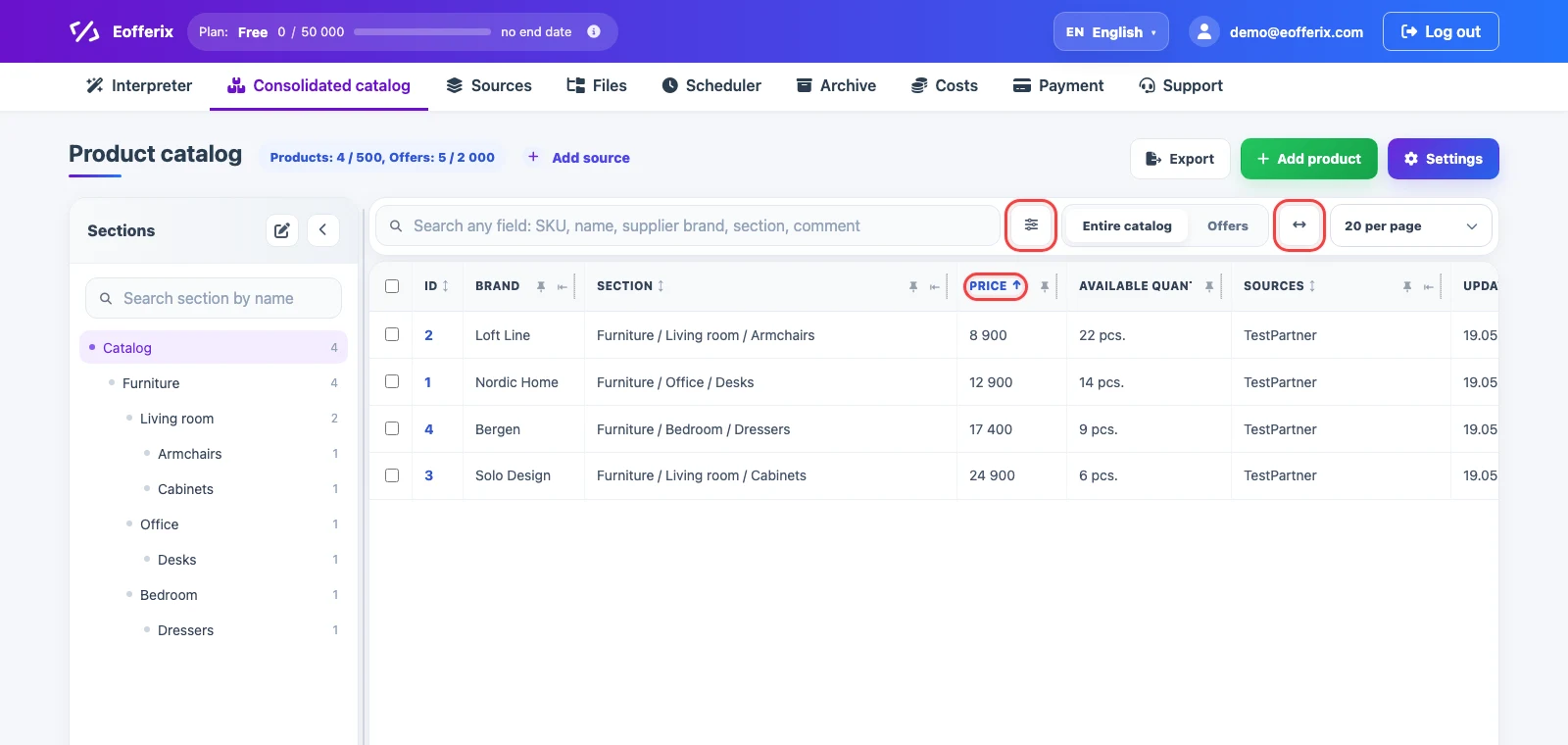
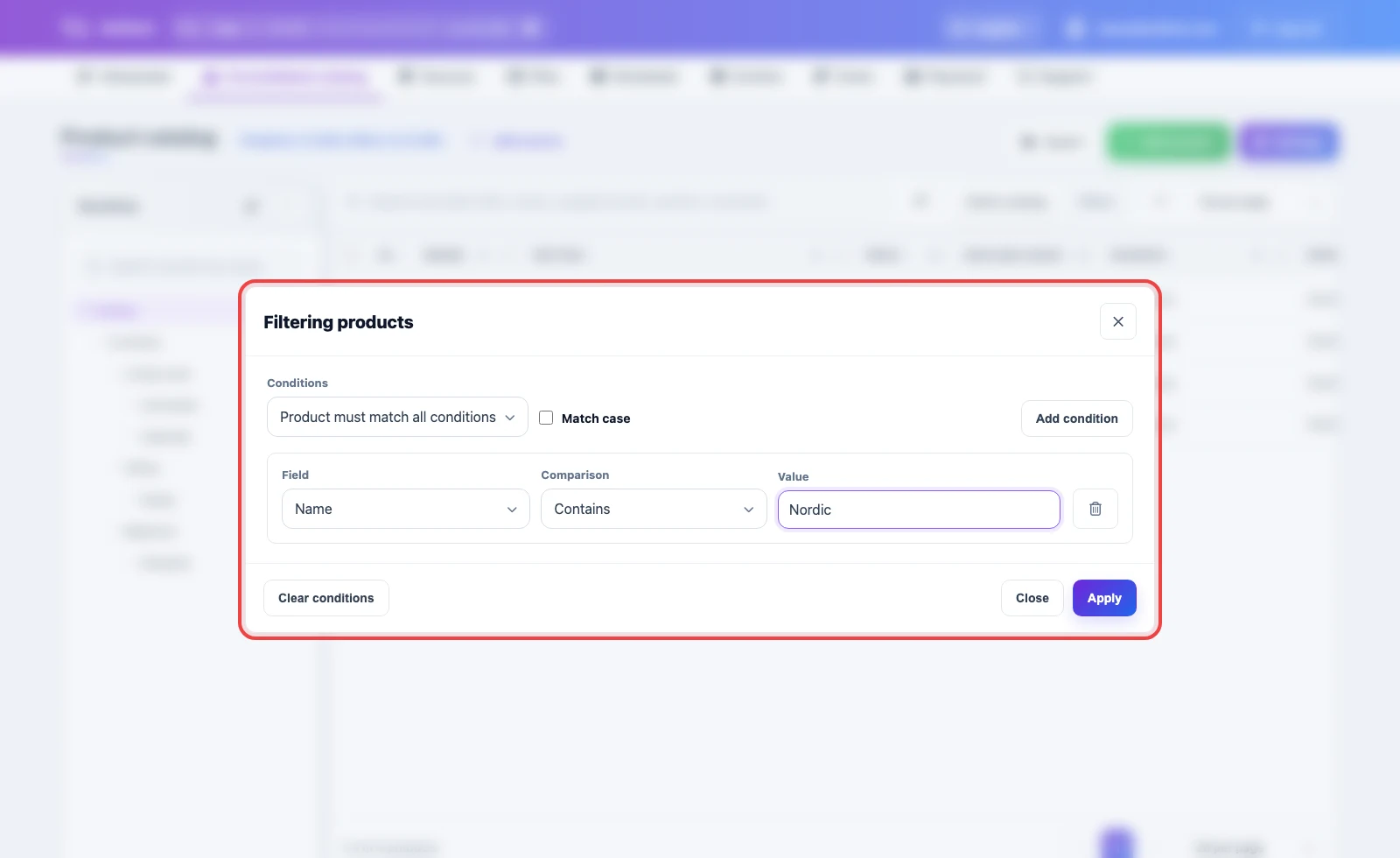
Click the filter button, add a condition, then choose the field, comparison, and value. Conditions can work as a list of required rules or as alternative rules when records should match at least one condition. Match case matters for text fields where uppercase and lowercase letters should be treated differently.
The arrow button expands the table into a wider mode. Use it when you need to see more columns at once: properties, prices, stock, sources, and update dates. Clicking it again returns the standard view.
Products and offers
A product stores the general product card: name, brand, section, description, images, and properties. An offer stores a sellable variant: SKU, price, stock, availability, and other variant-level data. One product can have one or several offers, but this structure is optional: some catalogs sell each item as a flat product card without separate variants.
To view sellable variants, switch the table to Offers. In this view, each row belongs to a specific offer and shows the linked product, offer name, SKU, price, stock, and update date.
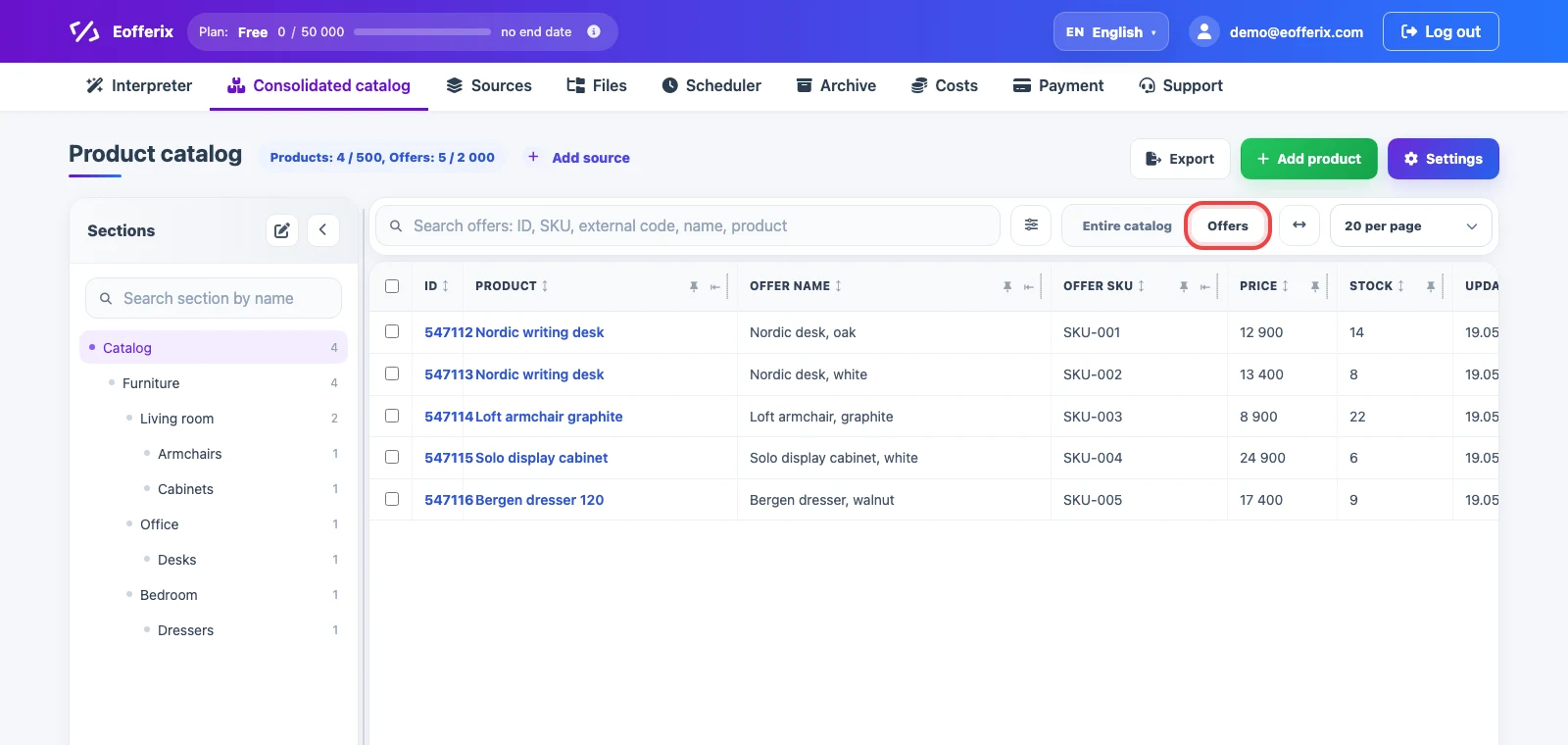
Table Settings
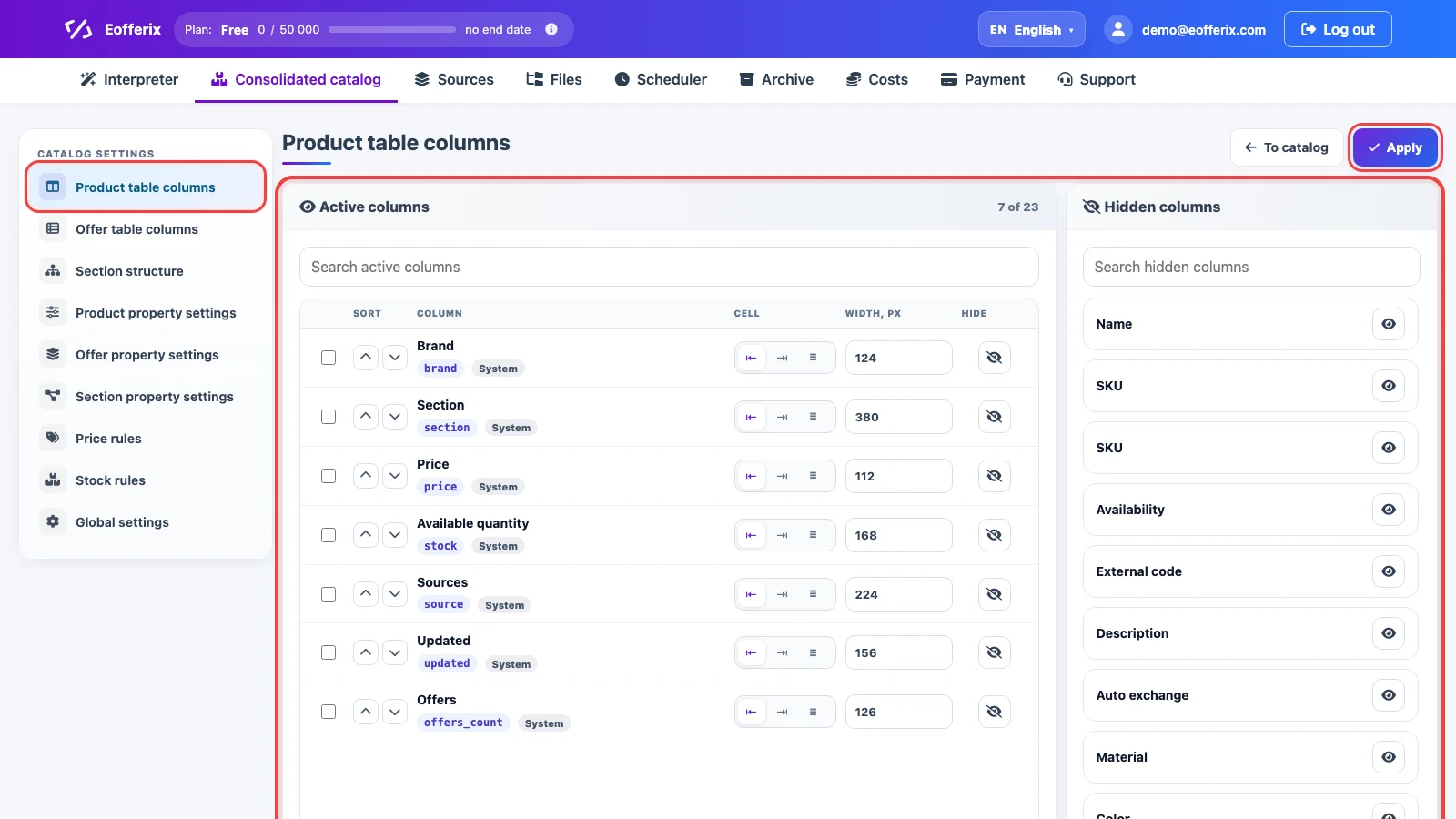
Table settings define which columns are shown in the product table and in the offer table. Each view has its own screen: Product table columns and Offer table columns.
- Active columns are fields currently visible in the table.
- Hidden columns are available fields that can be restored with the eye button.
- Up and down arrows change the column order.
- Cell buttons set alignment or wrapping: left, right, or show the full value.
- Width, px sets the column width.
- Hide removes the column from the current table without deleting the field.
- Apply saves the selected columns, order, and widths.
Product Properties
Properties are additional fields on a product, offer, or section: material, color, delivery time, active flag, link, file, number, date, or dictionary value. The table can show both system fields and user-created properties.
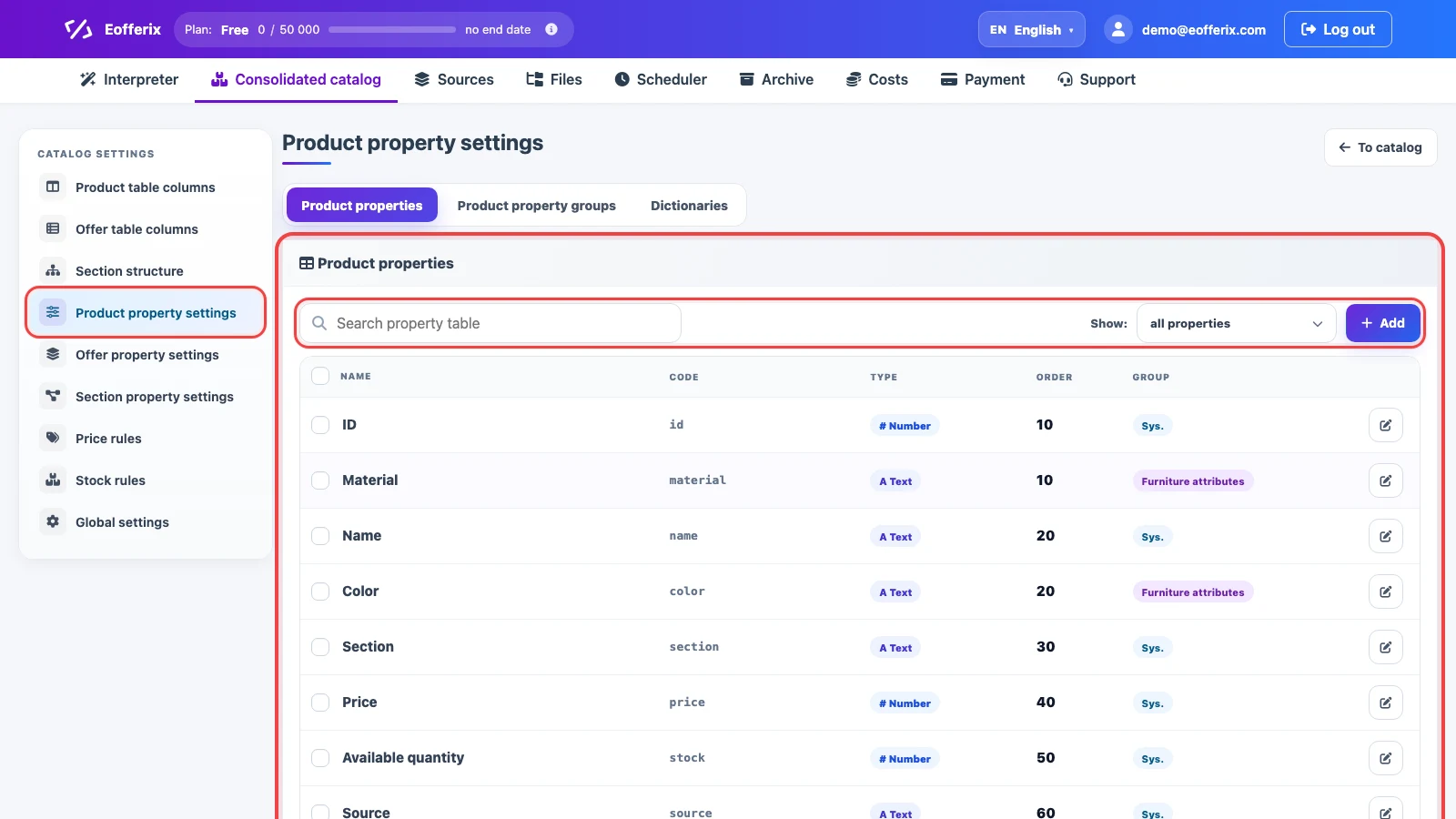
In Product property settings, search finds a property by name or code, Show separates system and custom properties, Add creates a new property, and the edit icon opens the property card. The card stores the name, code, data type, order, group, and display behavior.
When creating a new property, enter a clear name, the code used for import and export, the data type, and the display mode. The preview on the right shows how the field will look in the product card and table.
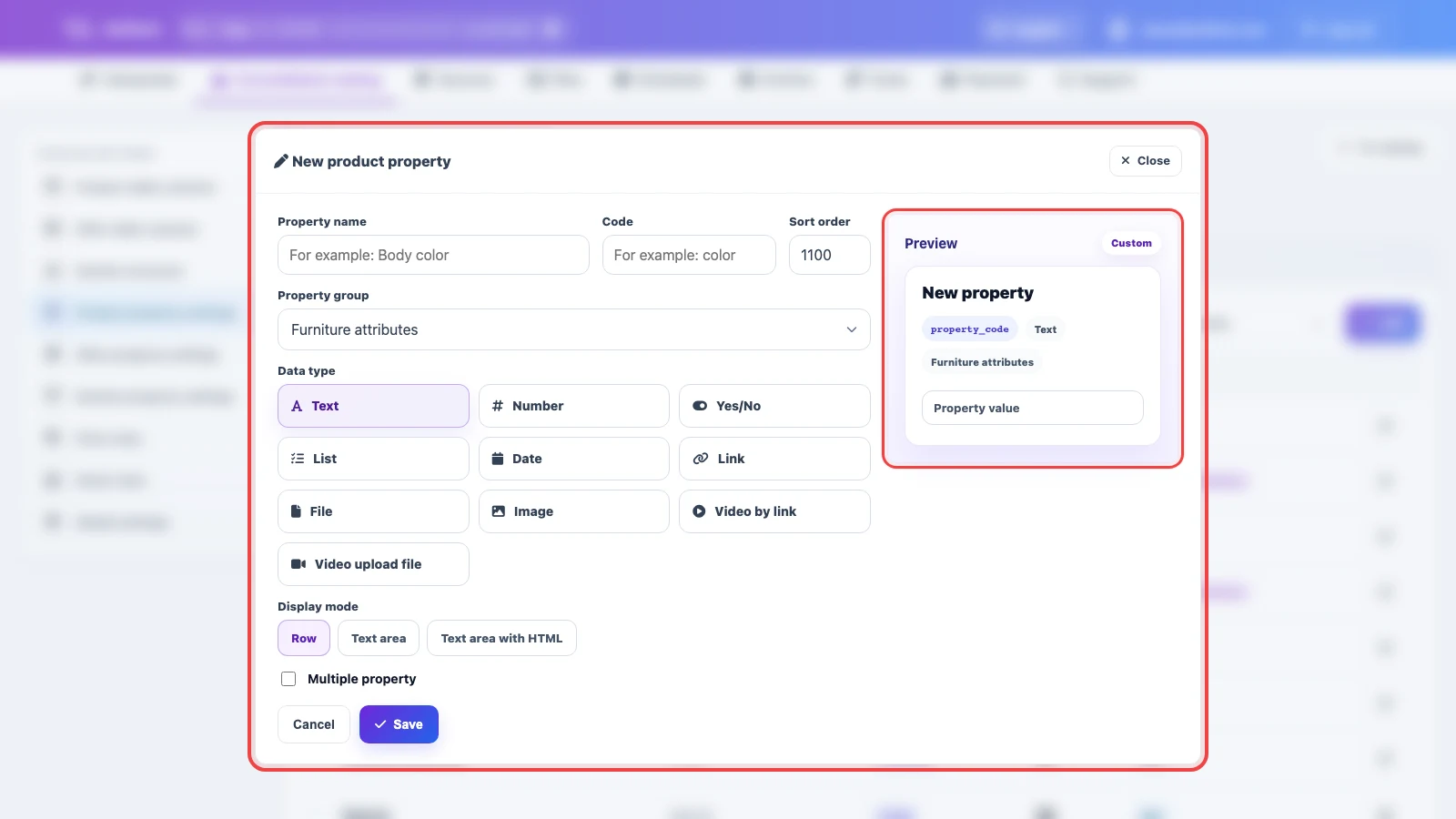
The property type affects how data behaves: text is searched as text, numbers sort and compare correctly, dates are filtered as dates, and dictionary values help avoid different spellings of the same attribute. Property setup is covered in How to configure product, offer, and section properties.
Sources and data origin
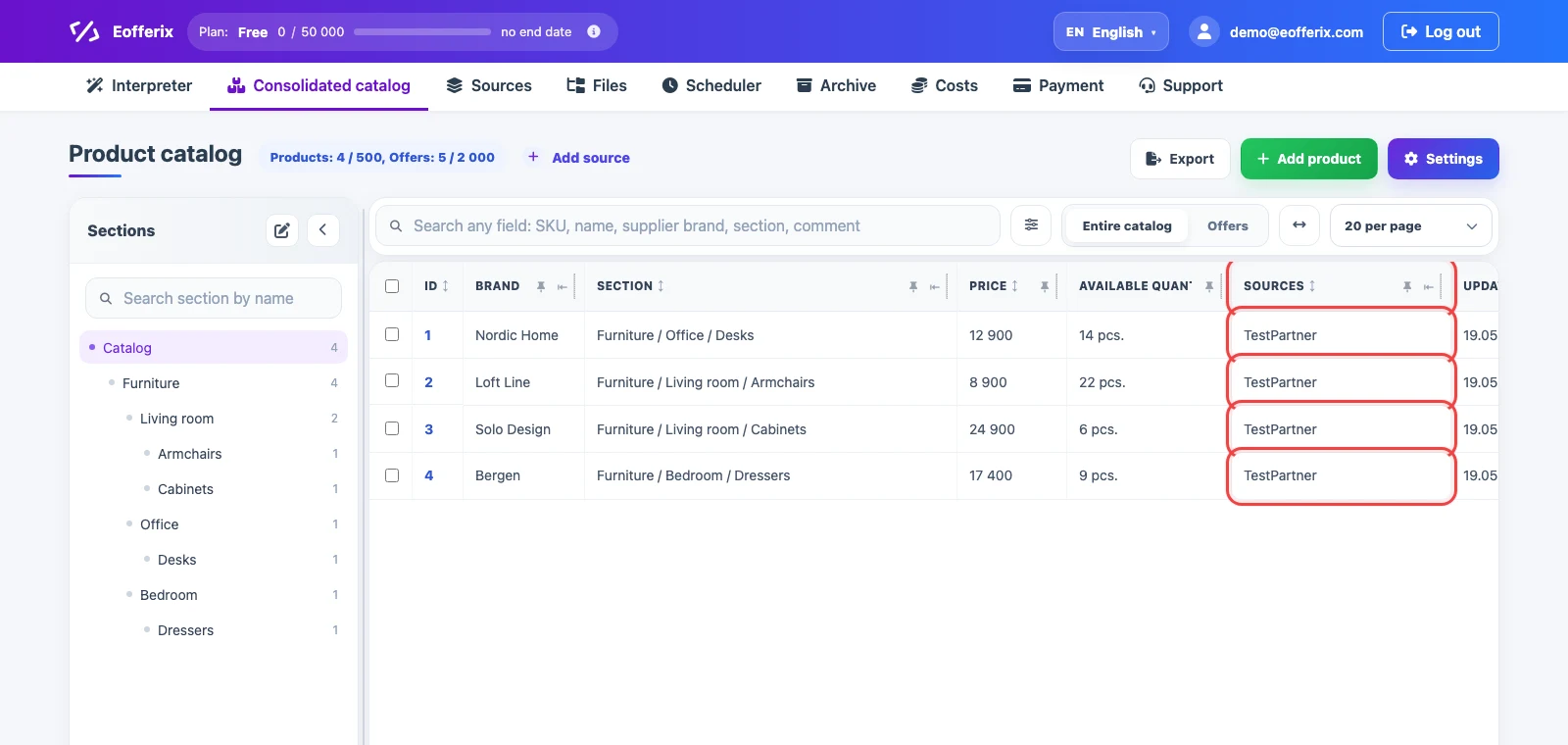
The Sources column shows where the product came from and which sources it is linked to. It can be an import profile, a manual entry, or several sources, for example when the same SKU arrives from multiple suppliers.
On the next upload, the source updates records according to the profile rules: Eofferix matches incoming data with existing products, offers, and sections. If identifiers match, the record is updated; if they do not, the next action depends on the import mode and source settings.
Prices, Price Groups, and Price Types
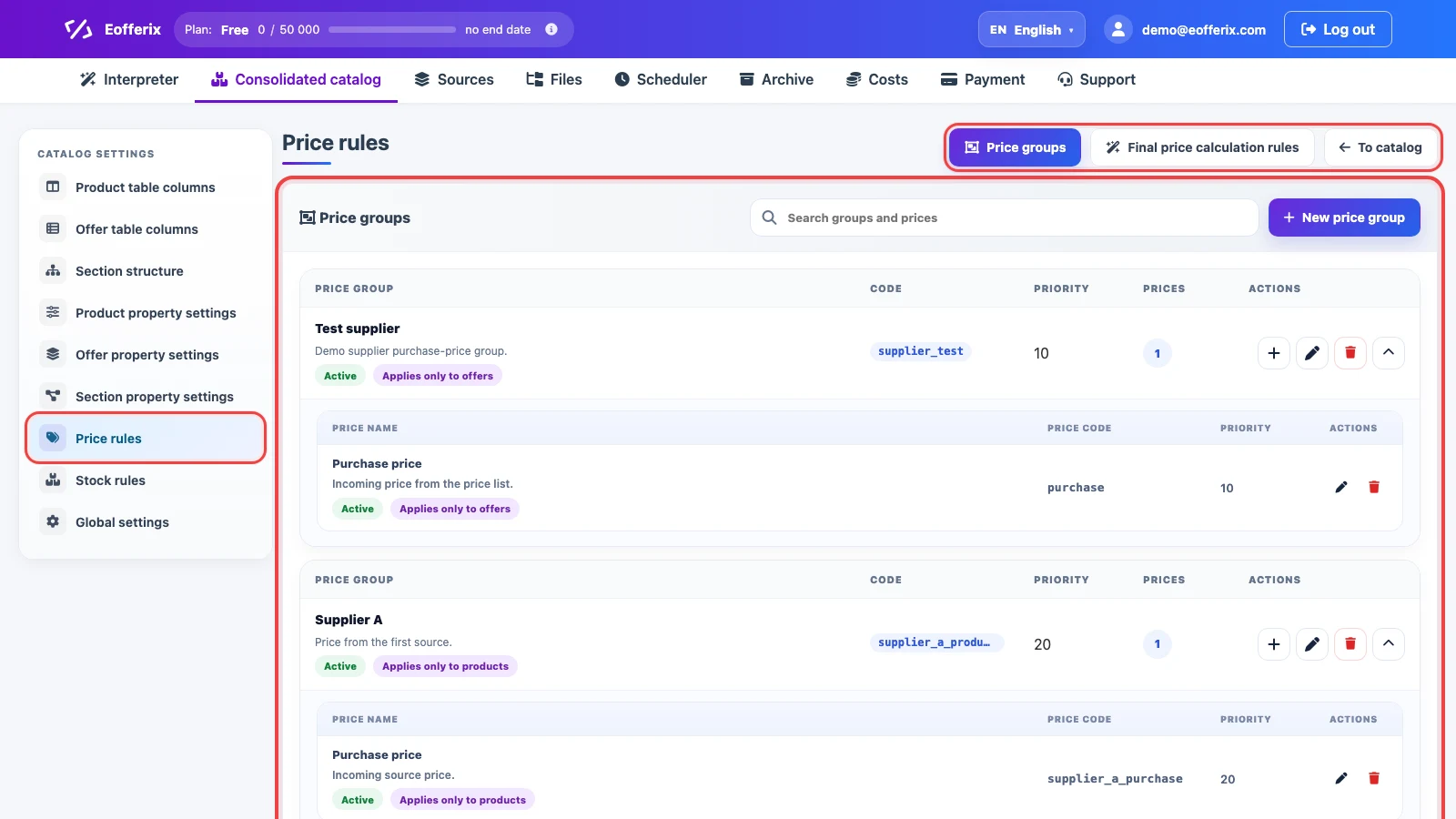
The table usually shows the final price, but the catalog can store several price sets. A price group separates a source or scenario, such as Supplier A prices and Supplier B prices. A price type describes the meaning of a value inside the group: purchase, retail, wholesale, sale, or another price.
In Price rules, the Price groups tab shows groups, price types, and their priorities. New price group creates a separate price source. The plus button in a group adds a new price type, the pencil edits a group or type, the trash button deletes it, and the arrow collapses or expands the price list. Final price calculation rules choose which price becomes final: minimum, maximum, priority-based, adjusted with markup, rounded, or filtered by conditions.
Stock, Warehouse Groups, and Stock Types
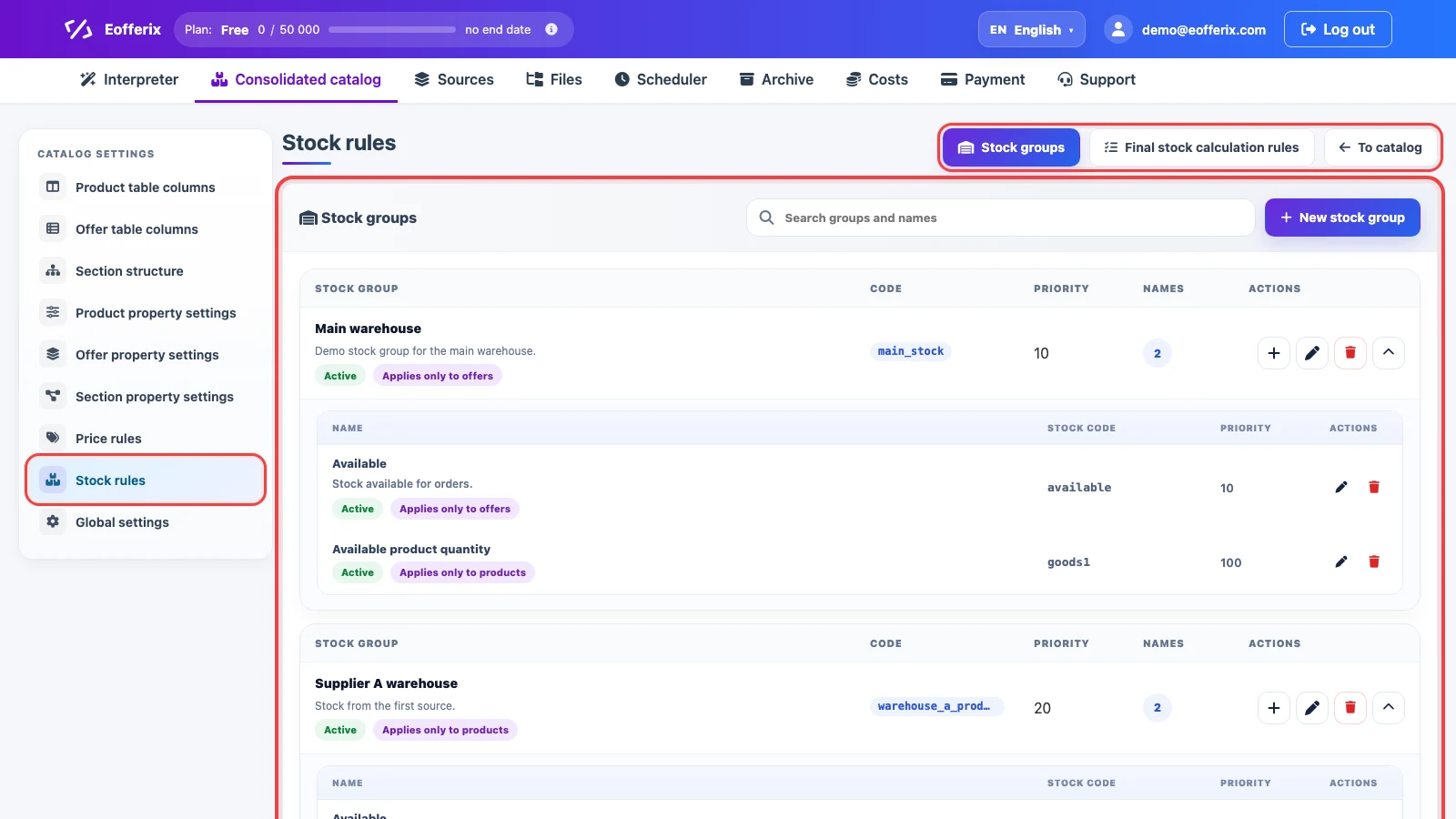
A stock group separates a warehouse, supplier, or channel, while a stock name describes either the warehouse name or a specific value inside a warehouse: available, reserved, incoming, or another quantity.
Example 1: if a supplier sends several warehouses, you can create the group Supplier warehouses and add Warehouse 1, Warehouse 2, and Warehouse 3 inside it. Example 2: if the group itself is the warehouse, such as Main warehouse, the names inside it can be Available, Reserved, and Incoming.
In Stock rules, the Stock groups tab shows warehouses and stock names. New stock group adds a warehouse or source, the plus button adds a stock name inside the group, the pencil edits it, the trash button deletes it, and the arrow collapses the list.
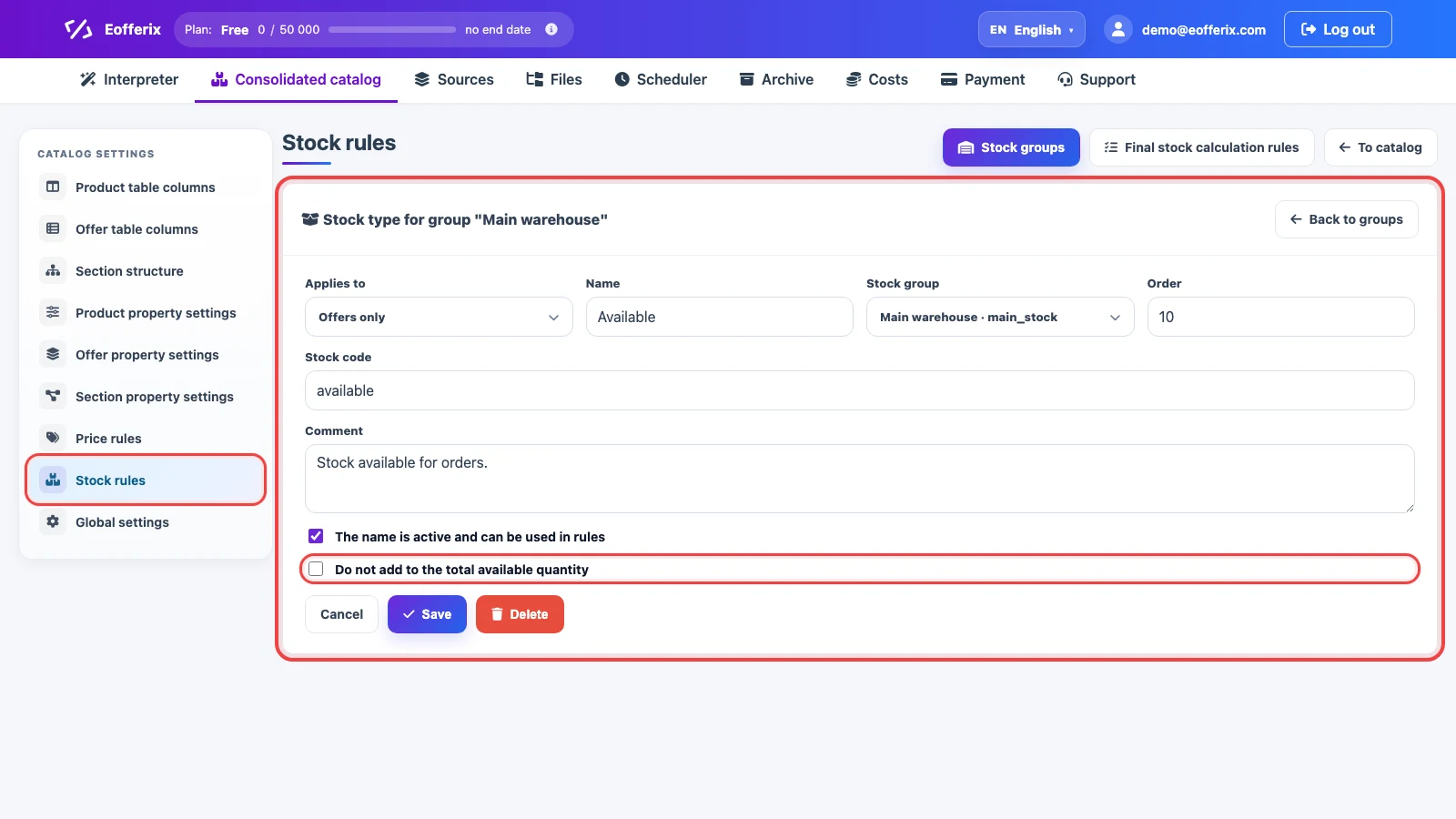
In the stock name card, set the scope, name, group, code, order, and behavior in the final quantity. If Do not add to total available quantity is enabled, the value remains stored in the catalog but is not included in the summed available stock.
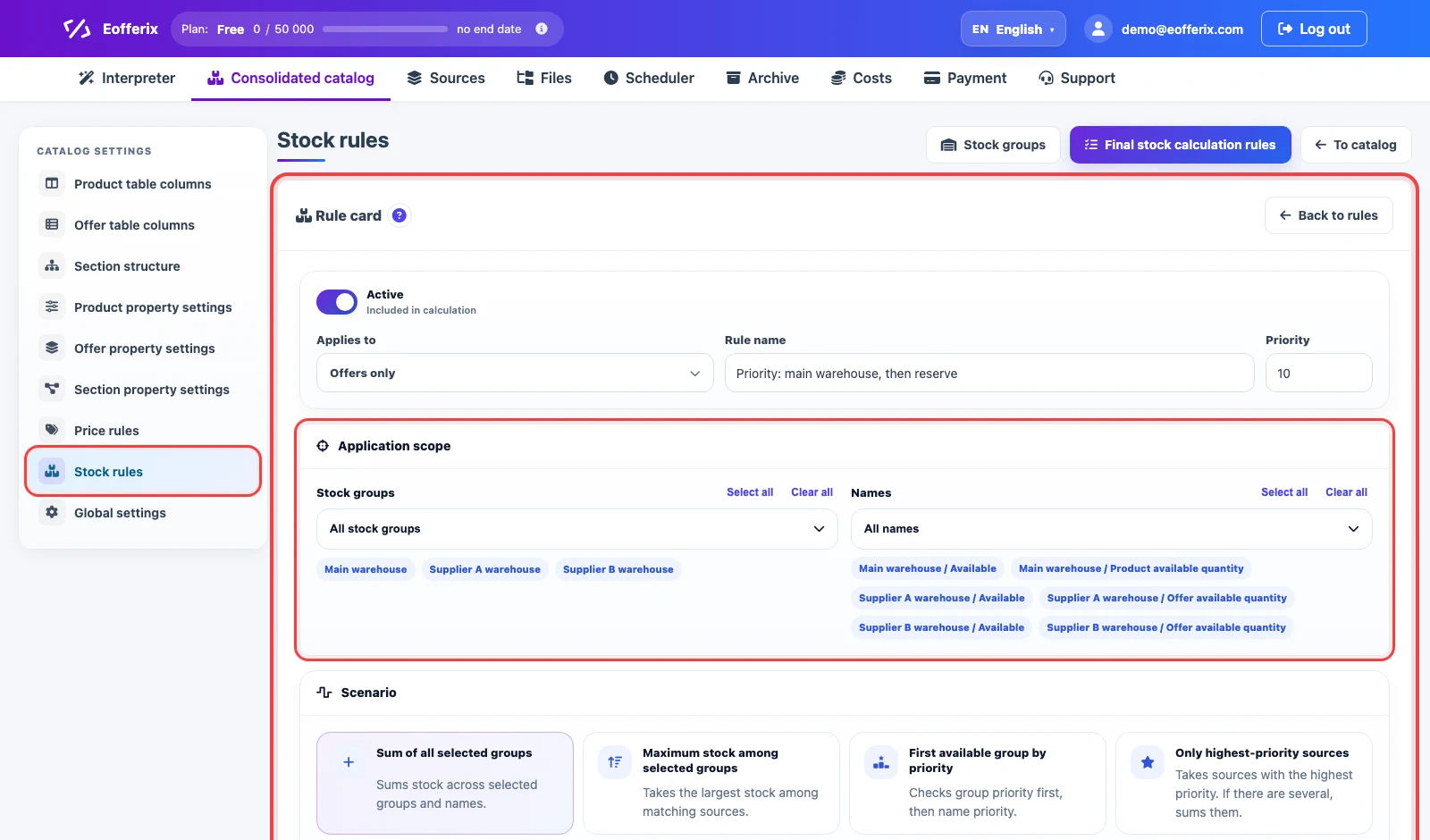
Final stock calculation rules define the final quantity in the catalog: sum by selected groups, maximum stock, first available priority group, capped value, or another selected scenario.
In Names, choose specific stock types from the selected groups. If the same name exists in several groups, Eofferix shows it as Group / Type, for example Main warehouse / Available.
For more context on when to use a consolidated catalog with price and warehouse groups, and when a regular export is enough, see Consolidated catalog or regular export.
Catalog sections
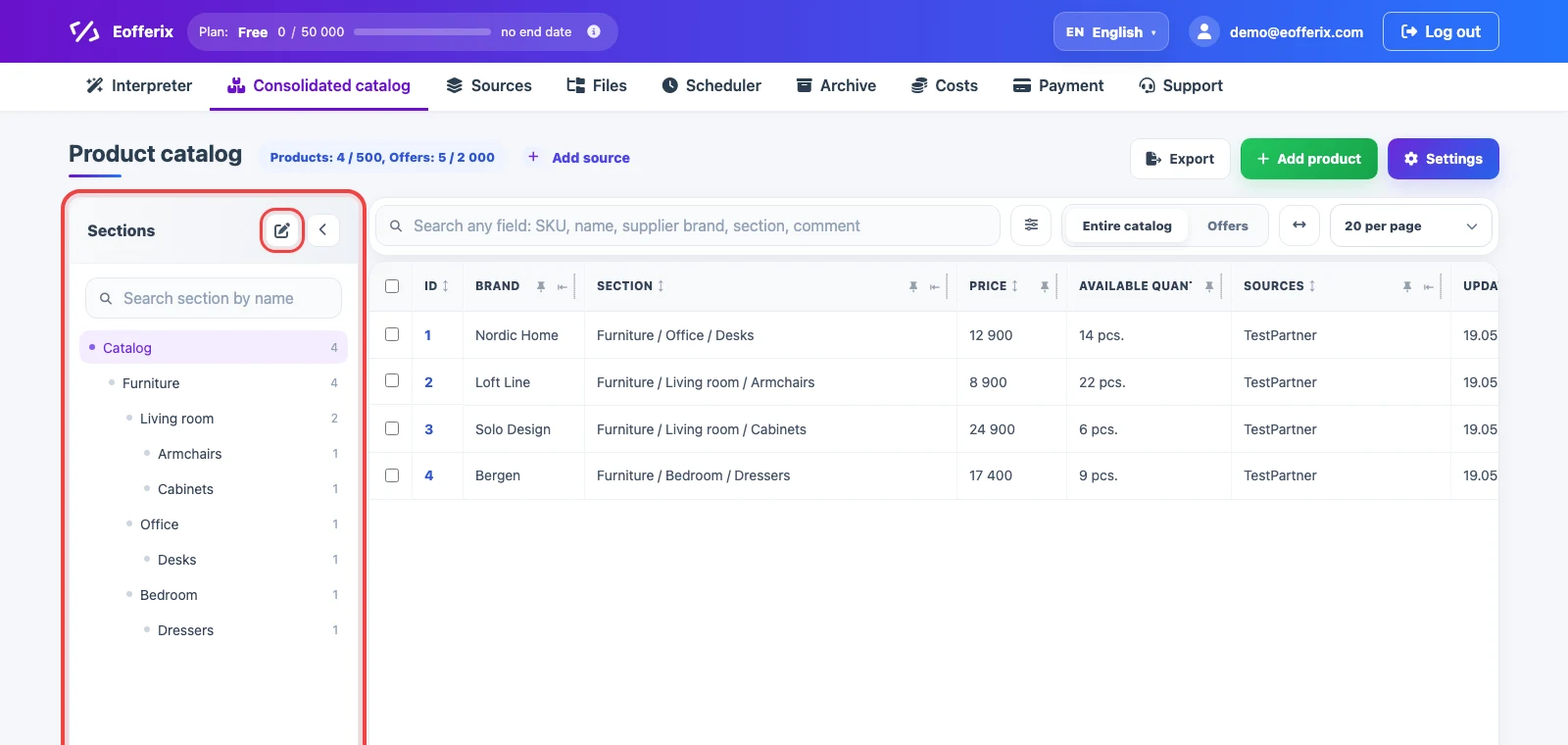
The Sections tree shows the catalog structure and the product count for each node. Clicking a section filters the table by that branch. The settings button in the tree header opens section structure management.
Sections can come from sources or be created manually. If a section is removed manually but the source keeps sending the same path and the profile is allowed to create sections, it can appear again after the next import. For stable cleanup, use section import rules and empty-section cleanup.
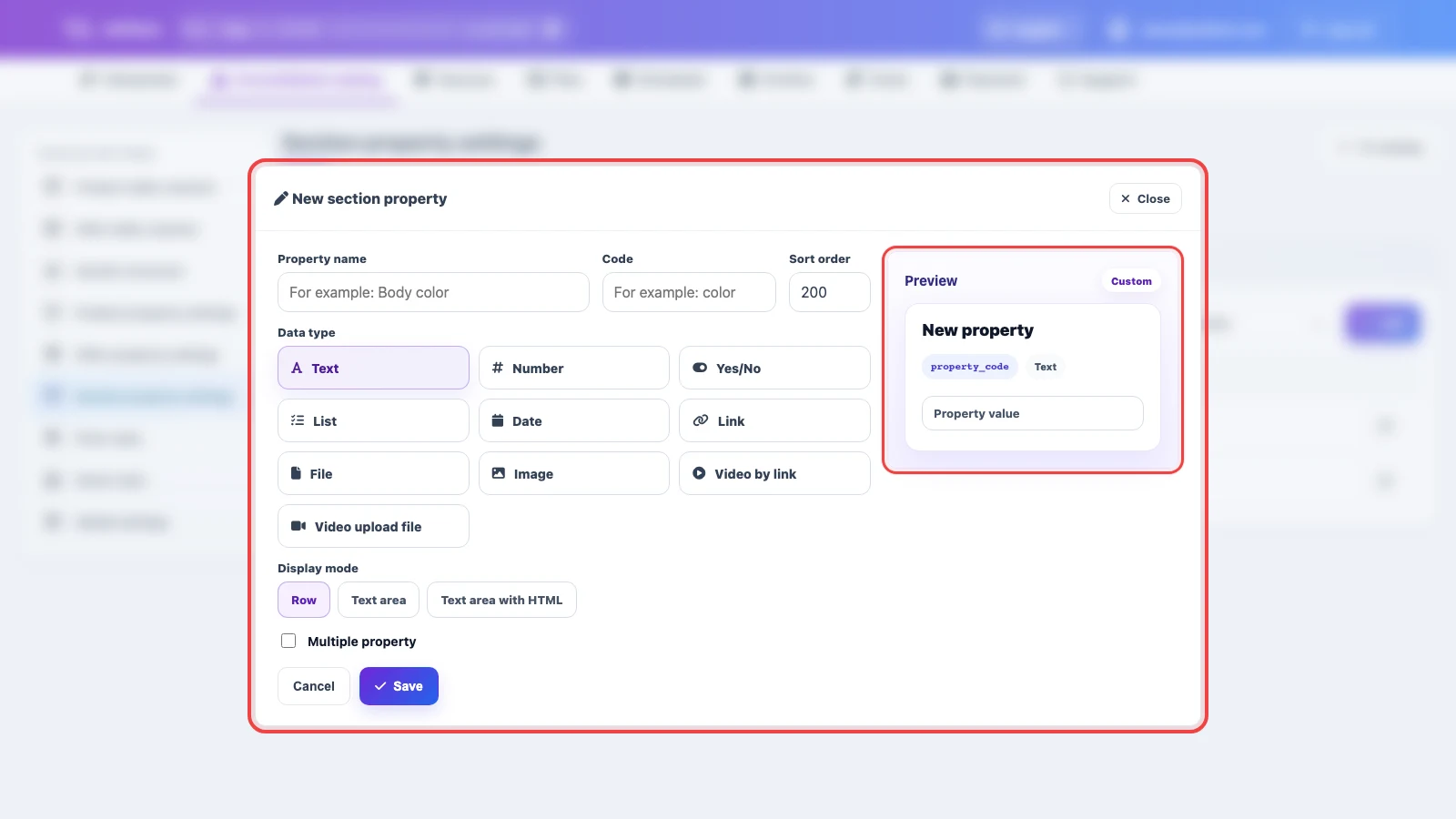
Sections also have their own properties. Section property settings stores fields that belong to a section: name, path, description, SEO fields, banner, menu visibility flag, or an external code for an application. Search finds a property by name or code, Show filters system and custom properties, Add creates a new section field, and the edit icon opens its card.
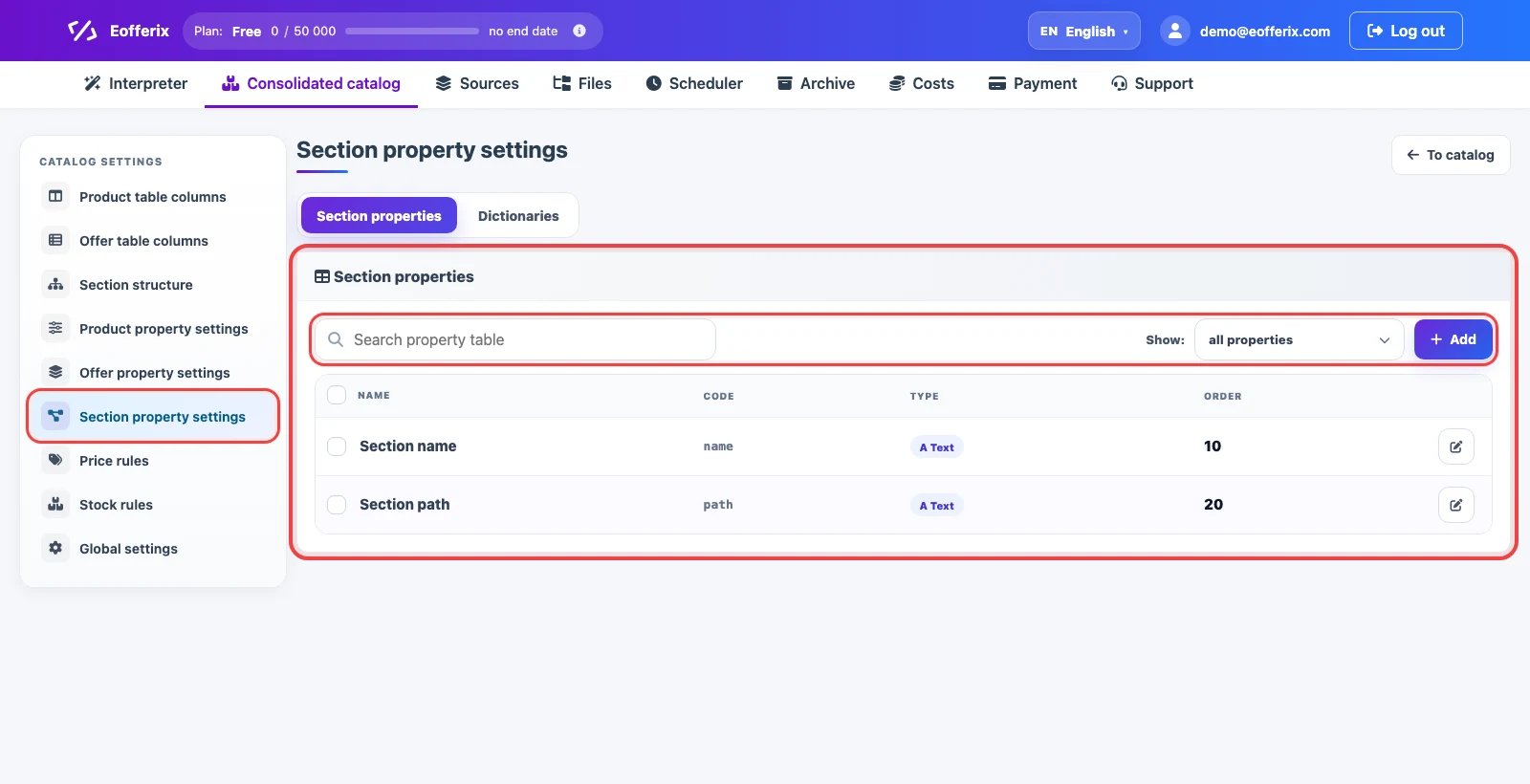
When adding a section property, choose its data type: text, number, yes/no, list, date, link, file, image, or video. These fields are useful for section descriptions, banners, SEO data, or flags needed by an external application.
Main actions
The top area of the catalog contains actions for continuing work with the data:
- Add source - create a profile for loading data into the consolidated catalog.
- Export - prepare an export from the current catalog.
- Add product - create a product manually without importing it from a source.
- Settings - open consolidated catalog settings: section structure, properties, price rules, and other parameters.
Limits
The consolidated catalog uses plan limits: the number of products and offers, plus the characteristic limit for products, offers, and sections. If the catalog grows through several sources, consider these limits in advance because new imports can add products, offers, prices, stock, and characteristics.
When the standard plan limits are no longer enough, you can connect a personal consolidated catalog database. It removes the product, offer, and characteristic limits for the consolidated catalog. Files, results, images, profile count, concurrent runs, and processing costs are controlled by other plan limits or separate add-ons.
How the catalog is updated
Catalog updates depend on the source profile settings. A typical flow looks like this:
- The source loads a file, API response, table, or another data set.
- Eofferix applies matching and transformation rules.
- Using the profile identifiers, the service looks for existing products, offers, and sections.
- Matched records are updated; new records are created or skipped depending on the selected import mode.
- After the upload, the consolidated catalog table shows the current data state, ready for export or delivery to an application.
It is important to separate manual edits from source-managed data. If a field is still updated by import, the next upload can replace a manual value. This behavior is configured in the source profile and import rules.