
A table snapshot shows the future table-shaped result. The input can be CSV, XLS, XLSX, XML, JSON or another supported format; this step defines how the data will look in the final table.
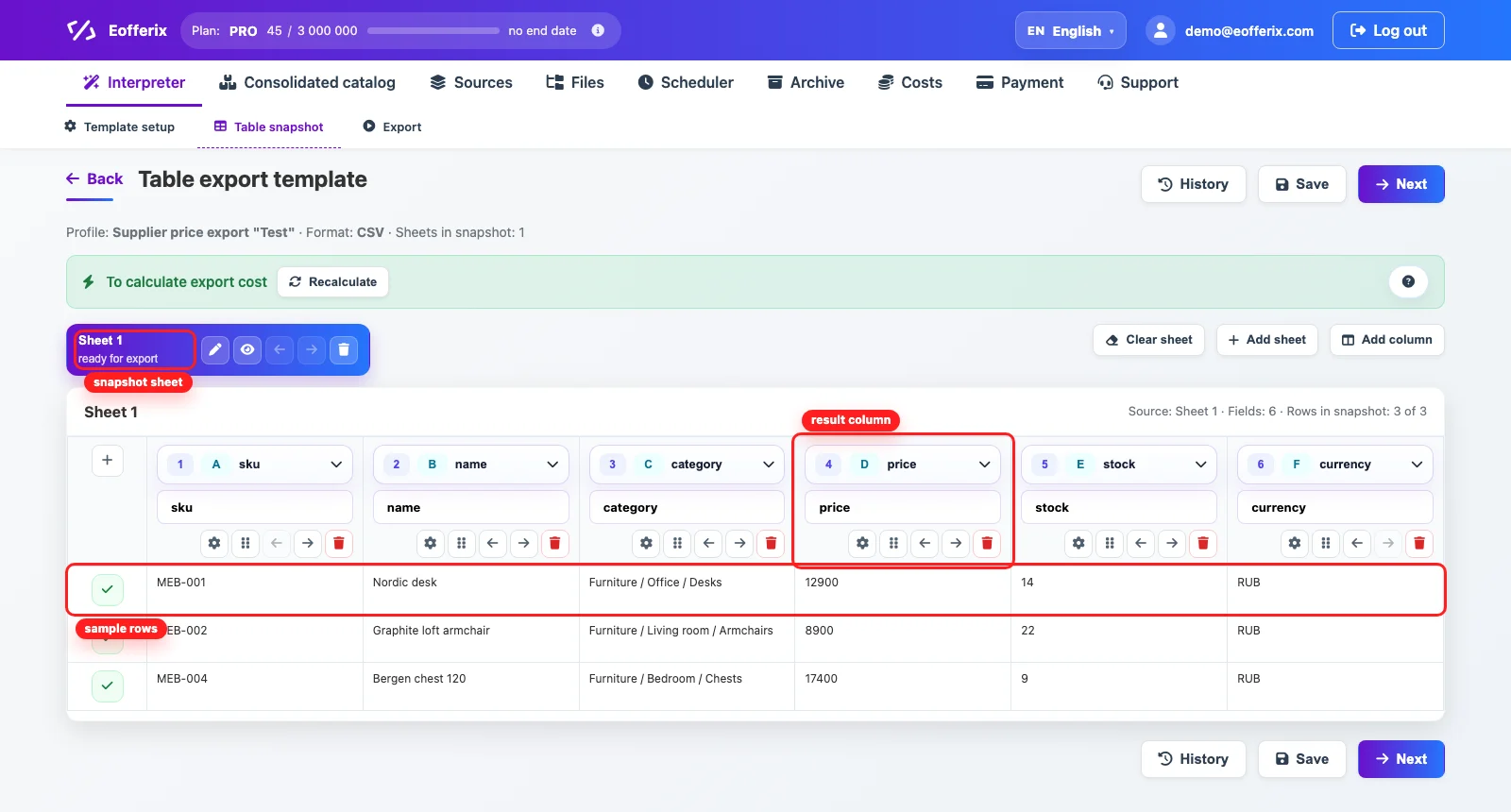
The screen shows a short sample of the table result built from the source. It includes sheets, columns and sample rows that help configure the final export.
What The Snapshot Shows
The top part of the table controls the future export, while the rows below show example values after they are mapped to the template. This makes it easy to understand what the result will look like.
- the sheet represents a page of the future table export;
- the column header shows the result field and the selected value used to fill it;
- sample rows show which values will reach the result;
- the checkmark on the left shows that the row is included in the export;
- buttons in the column header let you move, remove or configure a field.
Column Settings

To change field behavior, open the settings of the required column. This is where transformations, export conditions, display options and advanced field settings are usually configured.

- Transformations can clean a value, add markup, round a price or build text;
- export conditions define when a row or cell should reach the result;
- if a column is unnecessary, remove it from the template;
Transformations In The Table Snapshot
Value settings can contain a chain of rules and export conditions. In the example, one field prepares the price, another condition filters unavailable records, and a new result column builds a title from several source values.
- for
price, add Multiply with1.2, then Round to1; - in Export conditions, check
stockwith Greater than0for the whole row or record, so stock-zero items are not exported; - create a
Titlecolumn and build it with Replace with for product name plus SKU, then Add to end only when Warranty is Not empty.