
This example shows how to exclude a product from the result when the cleaned price is not greater than zero or the stock value is empty. The setup is done in value settings with transformations and the Export conditions block.
The example below uses an XML source, but the same logic applies to JSON and tables: only the field path or column name changes.
Input File Example
The source can be XML, JSON, or a table. The snapshot must contain the price and stock values used for the decision.
XML

<catalog>
  <product>
    <sku>DESK-01</sku>
    <name>Nordic desk</name>
    <price>249 USD</price>
    <stock>8</stock>
  </product>
  <product>
    <sku>CHAIR-02</sku>
    <name>Loft armchair</name>
    <price>0 USD</price>
    <stock></stock>
  </product>
</catalog>
JSON
{
  "items": [
    {"sku": "DESK-01", "name": "Nordic desk", "price": "249 USD", "stock": "8"},
    {"sku": "CHAIR-02", "name": "Loft armchair", "price": "0 USD", "stock": ""}
  ]
}
Table
| sku | name | price | stock |
|---|---|---|---|
DESK-01 | Nordic desk | 249 USD | 8 |
CHAIR-02 | Loft armchair | 0 USD | |
Where to Open the Price in the Snapshot
First open the settings of the price field. The click target depends on the snapshot type.
In an XML snapshot, click the value inside the price node.

In a JSON snapshot, click the price value inside the product object.

In a table snapshot, open settings with the button in the price column header.
Clean the Price Value
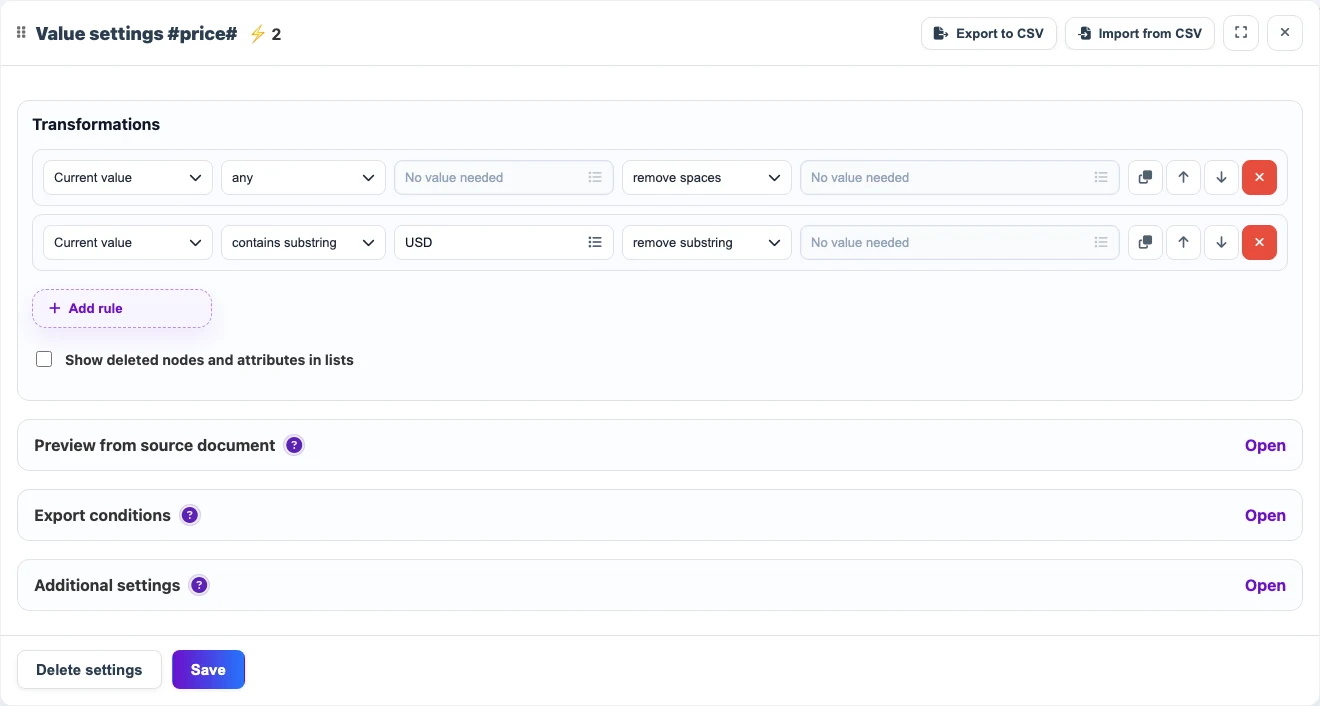

If the supplier sends the price as text with spaces and a currency code, first convert it to a number. This example uses two sequential rules.
- Current value - any - remove spaces.
- Current value - contains substring
USD- remove substring.
| Before | After removing spaces | After removing USD |
|---|---|---|
249 USD | 249USD | 249 |
0 USD | 0USD | 0 |
Configure Export Conditions
To exclude the product, select the Condition for the whole item scope. When the conditions are not met, the whole product is removed from the result, not only the price field.
- Add a condition: price path - after transformations - greater than -
0. - Add a condition: stock path - after transformations - not empty.
- Save the value settings.
Result
| sku | price | stock | Result |
|---|---|---|---|
DESK-01 | 249 USD | 8 | The product is exported. |
CHAIR-02 | 0 USD | | The product is not exported. |
If products with zero stock must also be excluded, replace the stock check not empty with greater than 0.