
The Scheduler page at https://app.eofferix.com/scheduler collects automatic source and profile tasks in one place. Use it to see what should run next, which tasks are active, which are paused, and where errors appeared.
The scheduler does not replace the settings of a source or profile. It displays the schedules that already exist and lets you open the related task from the action button on the right.
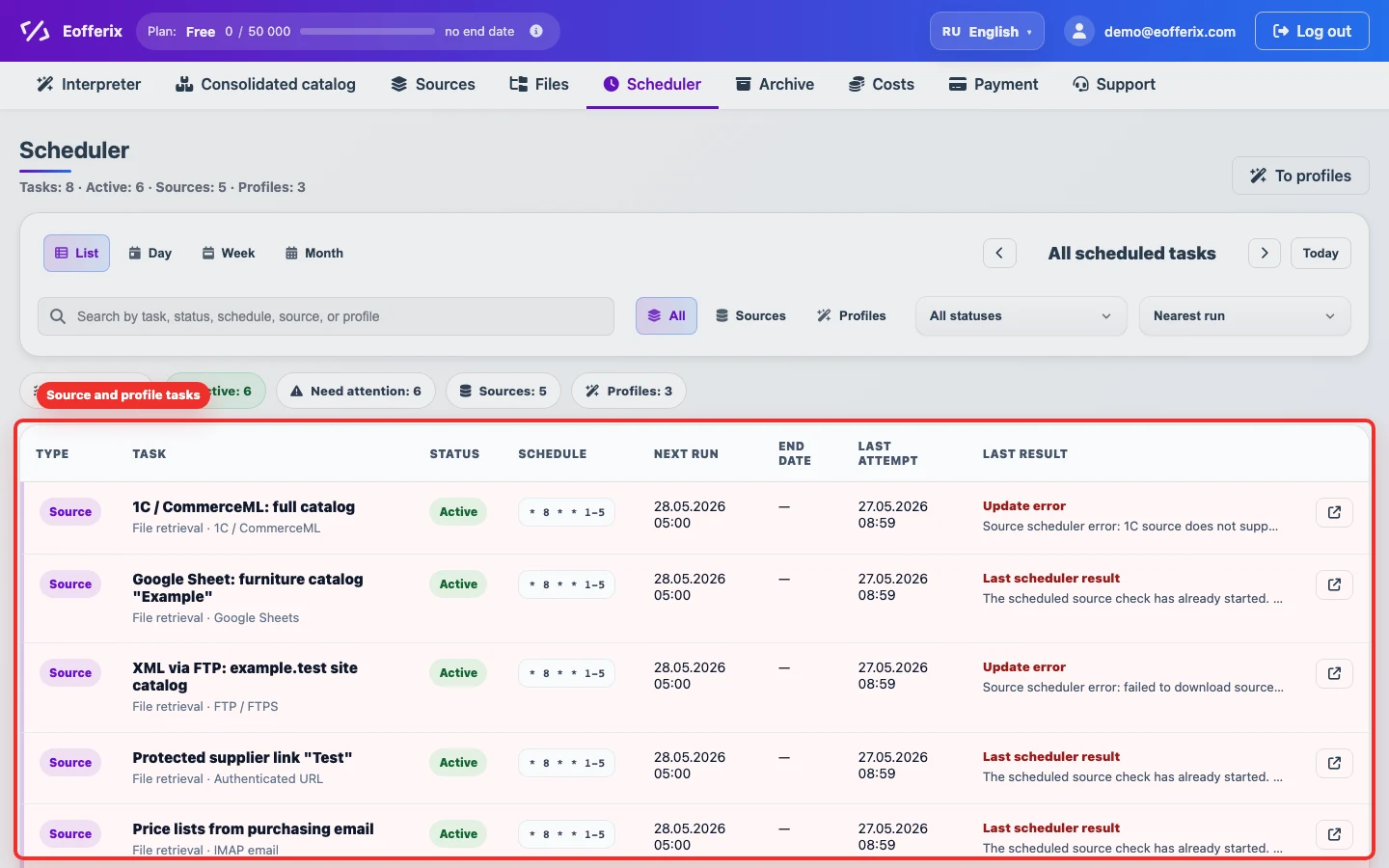
Which tasks are shown
| Type | Meaning |
|---|---|
| Source | The service receives a file or checks an external source on the source schedule: FTP, URL, email, Google Sheets, and other pull sources. |
| Profile | The service runs an interpretation or export profile by profile schedule or after an event. |
Statuses
| Status | Meaning |
|---|---|
| Active | The task is enabled and will run by schedule or event. |
| Pause | The task is saved but temporarily not executed. |
| Stopped | Autorun is not used or the task is disabled in settings. |
| With problems | The last attempt failed or the task needs attention. Open the source or profile and check the message. |
Filters and views
The top panel helps narrow the list: search by name, status, schedule, source, or profile, show only sources or only profiles, sort by nearest run, and switch the view.

- List is best for diagnostics: status, cron, last result, and the open button are visible.
- Day is useful for checking today’s tasks.
- Week shows repeated weekday runs and helps spot time overlaps.
- Month is useful for rare runs, for example on the 1st and 15th.