
A JSON snapshot shows the future JSON result structure. The input file may be a CSV table, XLSX, XML or another format; this step defines what the final JSON export will look like.
The screen shows a short sample of the result structure built from the source; it contains only unique nodes. The Other values button helps check how the same node is filled for other products, categories or records.
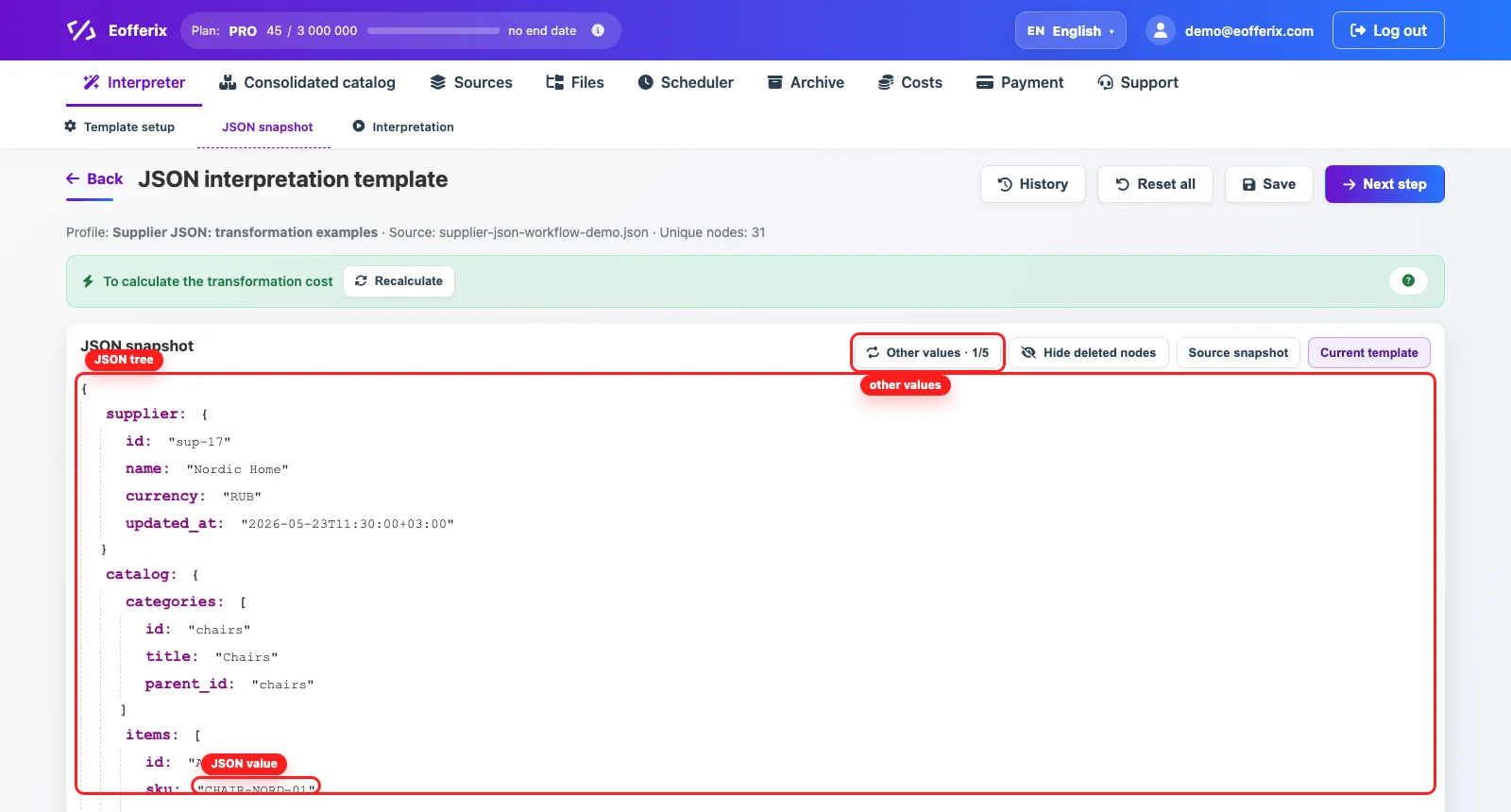
How To Read The JSON Tree
Indentation shows the nesting of the future JSON. Keys with a colon form the path to data, while the values next to them show an example of what will reach the result.
- curly braces show an object with named fields;
- square brackets show an array of repeated records;
- a path such as
catalog / items / skuis useful when configuring a result field; - Current template shows the structure that will reach the final result;
- Source snapshot helps compare the template with the original structure.
Value Settings
Click a key or value to open its settings. There you can define transformations, export conditions and additional rules for the selected node.

- transformations change the value before it is written to the final file;
- export conditions decide whether the node should reach the result;
- extra nodes can be removed from the template;
- check Other values before saving so the rule works beyond the first record.
Transformations In The JSON Snapshot
Value settings can contain a chain of rules and export conditions. In the example, one field prepares the price, another condition filters unavailable records, and a new result node builds a title from several source values.

- for
price, add Multiply with1.2, then Round to1; - in Export conditions, check
stockwith Greater than0for the whole row or record, so stock-zero items are not exported; - create a
Titlenode and build it with Replace with for product name plus SKU, then Add to end only when Warranty is Not empty.