
Final stock rules define which quantity is shown in the consolidated catalog as the available stock of a product or offer. They are useful when sources send several warehouses, statuses, or suppliers, but the catalog needs one final quantity.
Stock can be summed, selected by maximum value, chosen by the first available priority source, limited to highest-priority sources, or capped by a maximum value.
Where the setting is located
Open Consolidated catalog, click Settings, and go to Stock rules. The page has Stock groups and Final stock calculation rules.
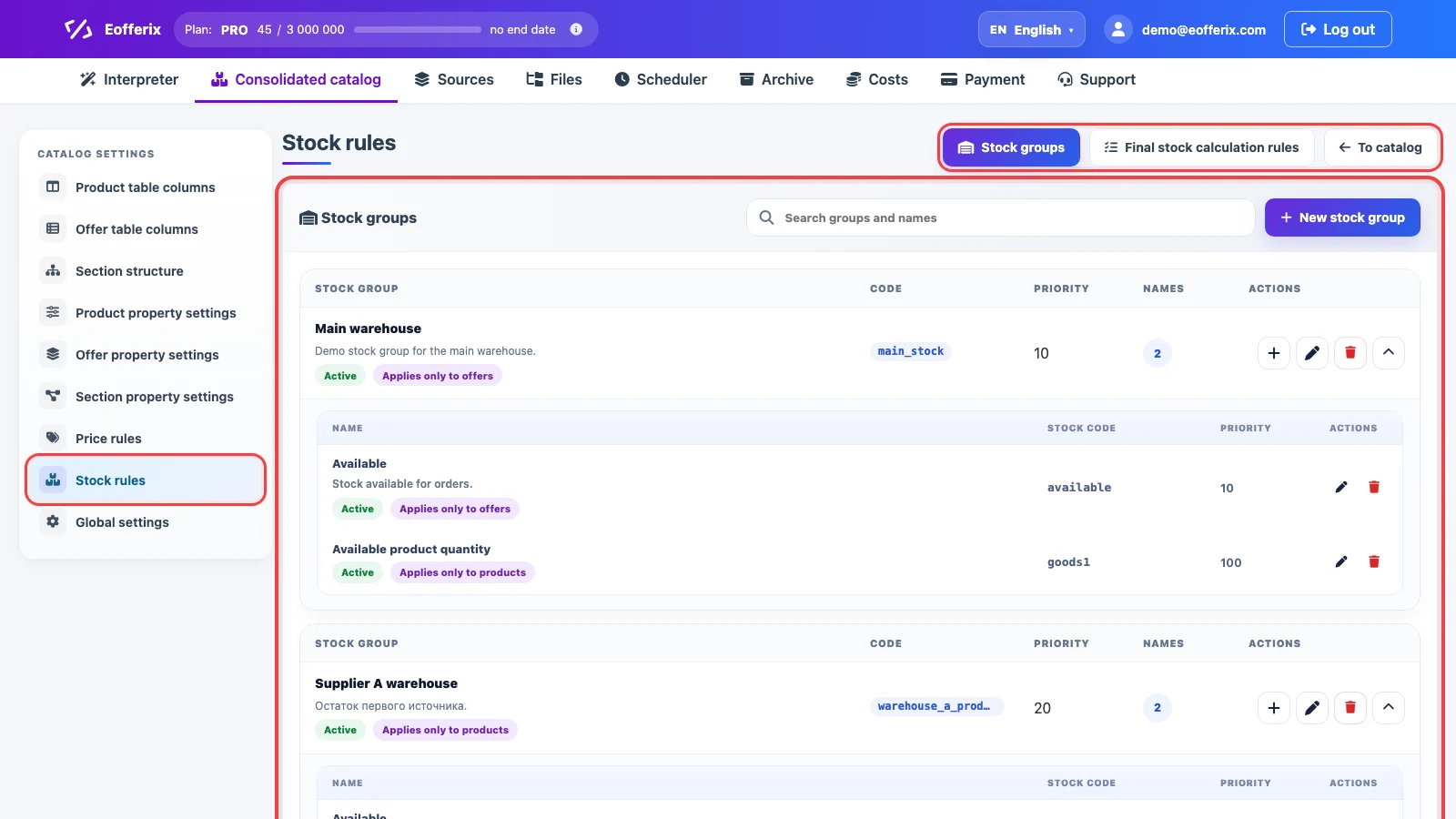
Stock groups and names
A stock group separates a warehouse, supplier, or channel, while a stock name describes either the warehouse name or a specific value inside a warehouse: available, reserved, incoming, or another quantity.
Example 1: if a supplier sends several warehouses, create the group Supplier A and add Warehouse 1, Warehouse 2, and Warehouse 3 inside it. Example 2: if the group itself is a warehouse, such as Main warehouse, store Available, Reserved, and Incoming inside it.
New stock group creates a separate group. The plus button in a group adds a new name, the pencil opens editing, the trash button deletes an item, and the arrow collapses or expands the list.
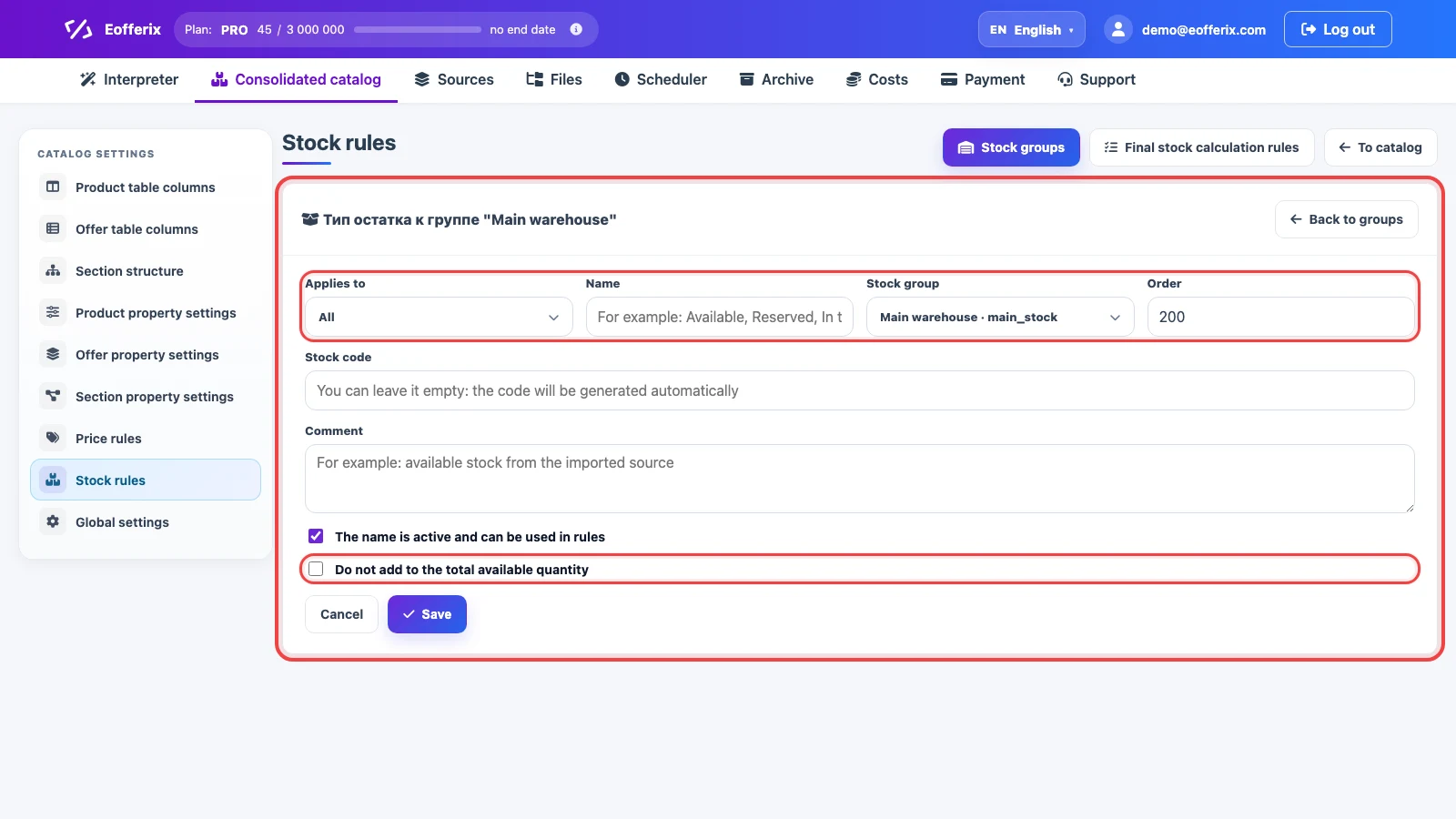
In the stock name card, set the scope, name, group, order, code, and comment. The active checkbox controls whether the value can participate in rules. Do not add to total available quantity is useful for reserved, incoming, or other values that should be stored but not added to available stock.
Final stock calculation rules
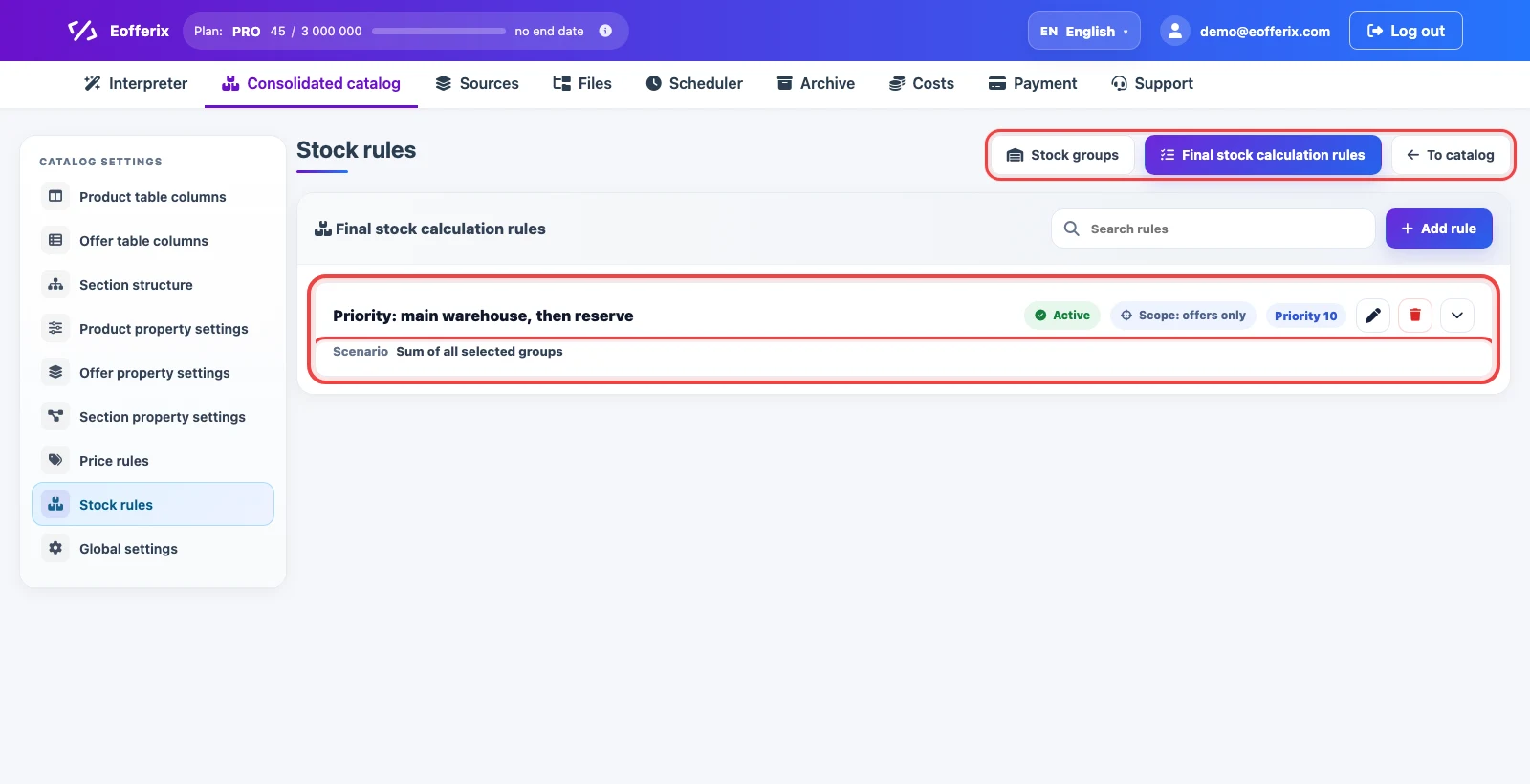
Open Final stock calculation rules. The list shows the rule name, status, scope, and priority. Add rule creates a new rule, the pencil edits it, the trash button deletes it, and the arrow expands a short scenario summary.
In the rule card, choose whether it applies to products, offers, or the whole catalog. Then select the stock groups and specific names that should participate in the calculation.
If the selected-name list is long, Eofferix shows only part of it, adds an ellipsis, and displays an expand button. Values are shown as Group / Type, for example Supplier A / Warehouse 1 or Main warehouse / Reserved. This makes it clear which group each stock type comes from.
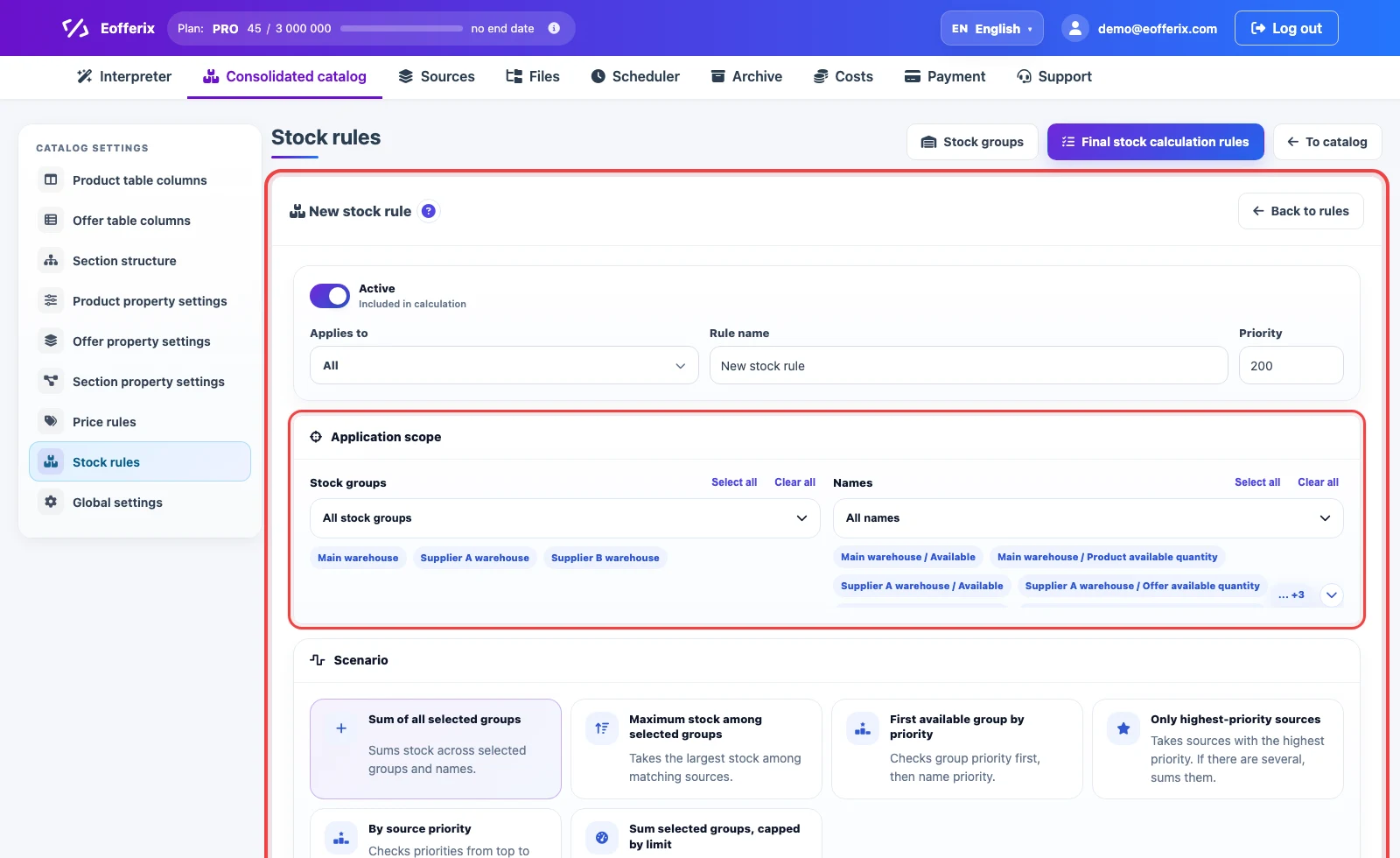
What each calculation scenario means
The scenario defines how Eofferix turns selected stock groups and names into one final quantity. Before the calculation, the rule can exclude sources whose stock is below the specified minimum.
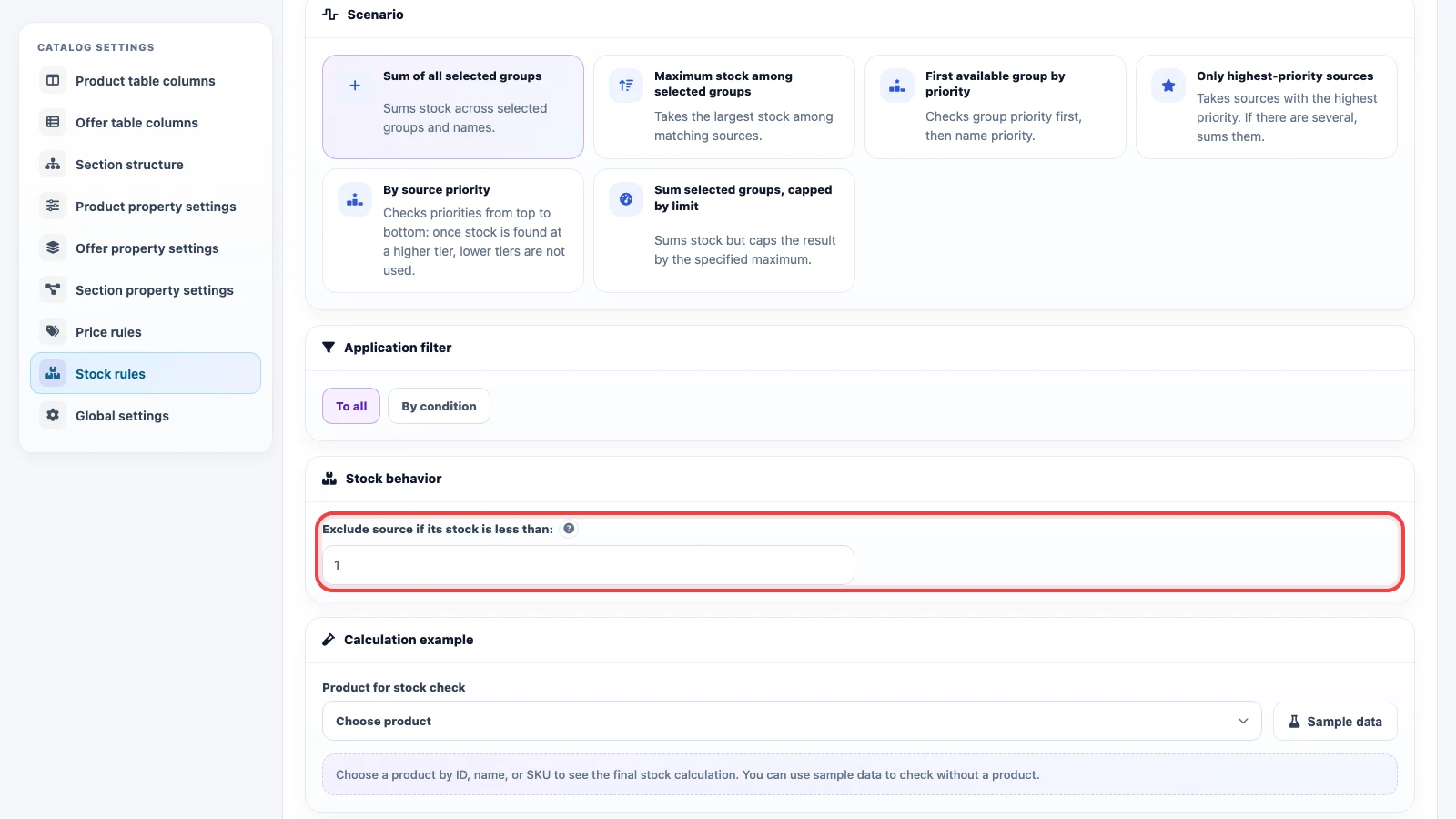
Sum Of All Selected Groups
Sum of all selected groups adds matching stock values from selected groups and names. For example, Warehouse 1 = 5 and Warehouse 2 = 7 produce a final stock of 12. Use it when all selected warehouses or sources are truly available for sale.
Maximum Stock Among Selected Groups
Maximum stock among selected groups takes the largest matching value. If one source sends 5, another sends 7, and a third sends 3, the result is 7. This is useful when several sources describe the same physical stock and should not be added together.
First Available Group By Priority
First available group by priority checks group and name order and uses the first matching stock value. For example, if the main warehouse is 0 and a supplier warehouse is 8, the rule skips the main warehouse and takes 8 from the next matching source.
Only Highest-Priority Sources
Only highest-priority sources finds sources from the top priority tier and sums only them. For example, sources with priority 100 send 4 and 6, while a source with priority 50 sends 20. The final stock is 10 because the lower priority tier is ignored.
By Source Priority
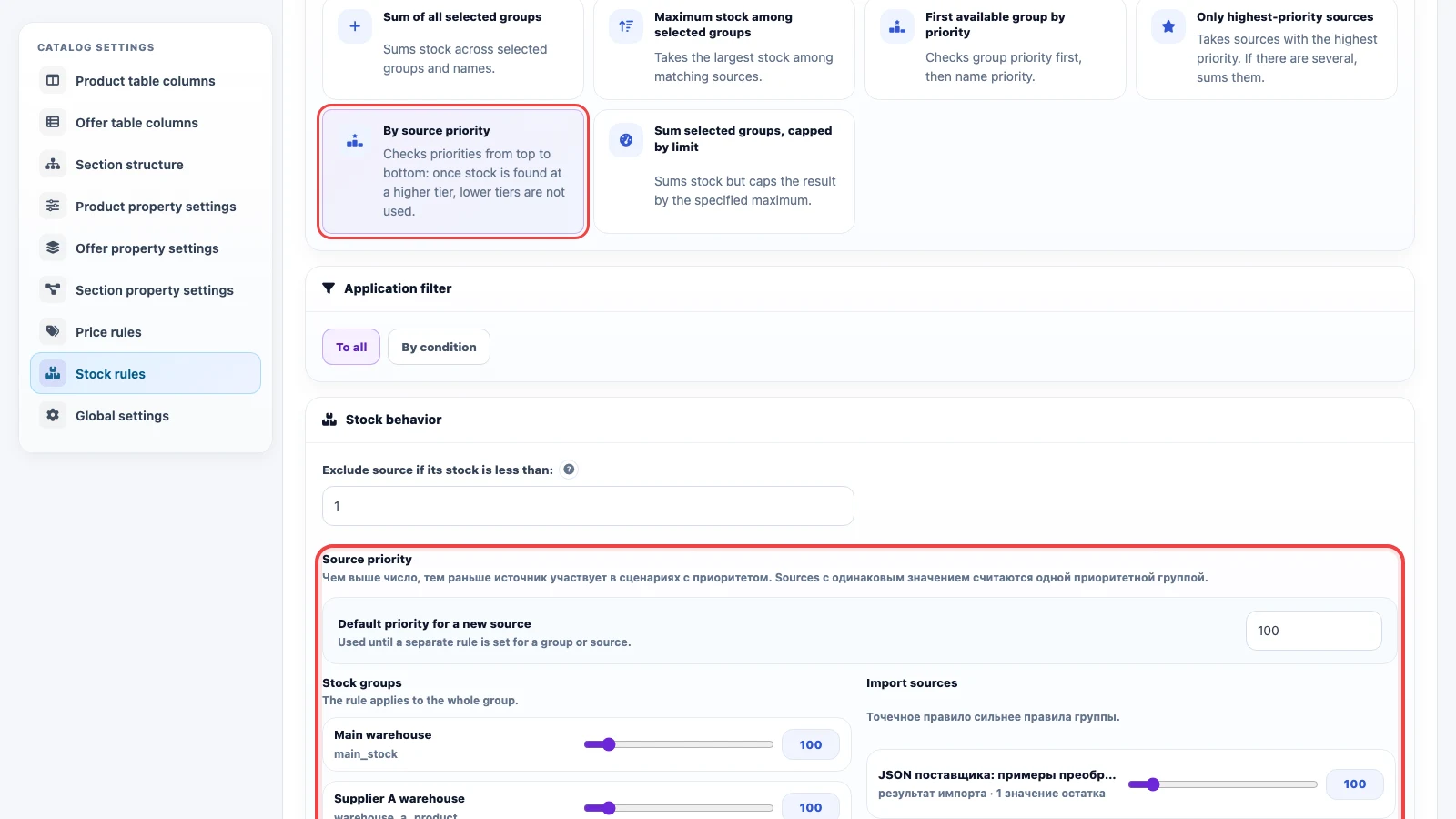
By source priority checks priority tiers from high to low. If a higher tier has matching stock, lower tiers are ignored. If the top tier is empty or below the minimum stock, the rule moves to the next tier.
Sum Selected Groups, Capped By Limit
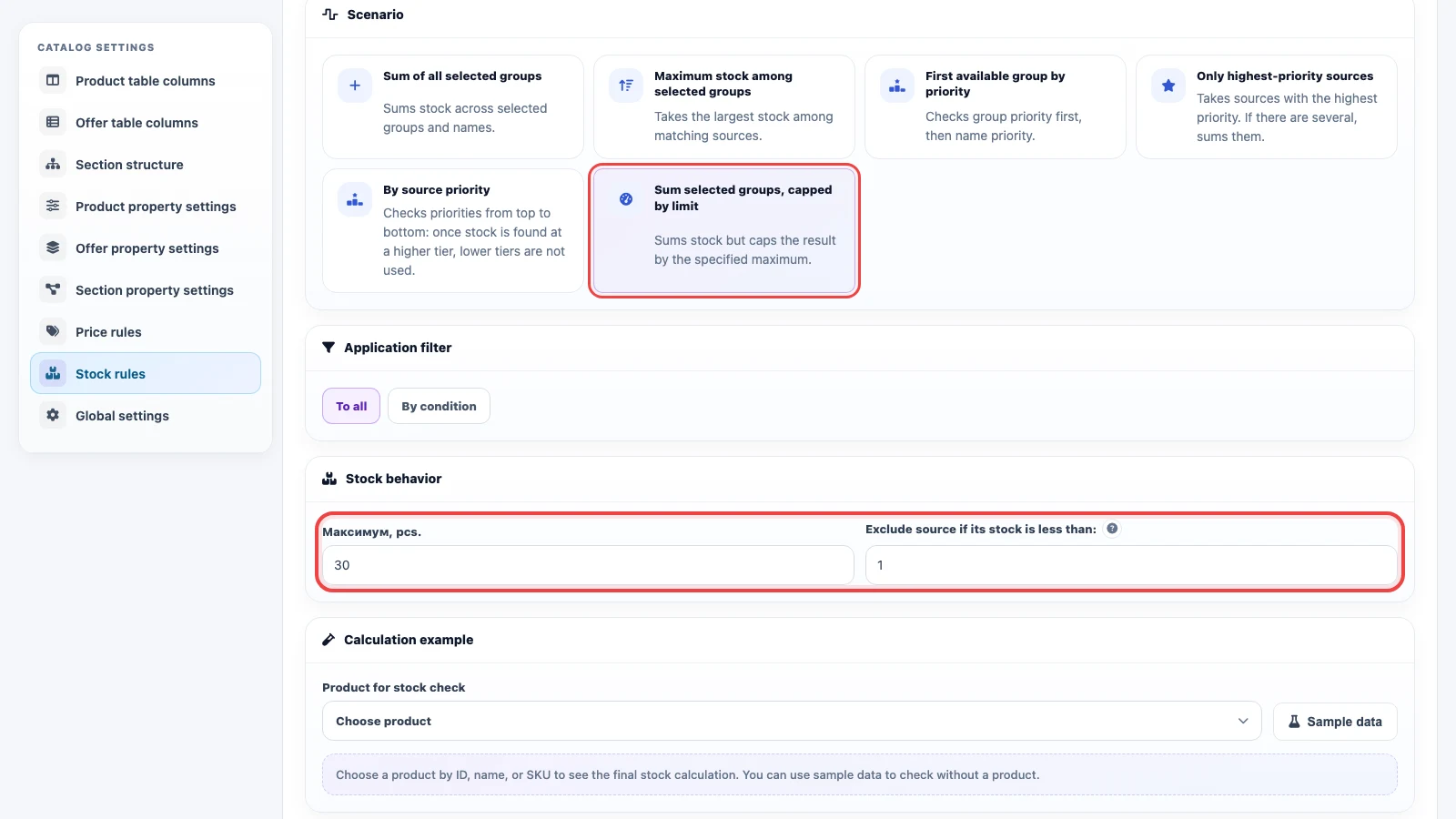
Sum selected groups, capped by limit first sums stock values and then limits the result by the specified maximum. For example, if warehouse stock sums to 47 and the maximum is 30, the final stock is 30. Use it when an external application should not receive too large an available quantity.
Stock behavior and sample check
Exclude source if its stock is less than prevents small or zero values from participating in the calculation. For example, with value 2, sources with stock 0 or 1 are skipped.
Priority-based scenarios can use source priorities. The higher the number, the earlier the source participates in the calculation. Sources with the same priority are treated as one tier.
Example setup
Suppose a supplier sends quantities for two warehouses and a separate reserved value. Create the group Supplier A, then add Warehouse 1, Warehouse 2, and Reserved. For reserved stock, enable “Do not add to total available quantity”.
Then create an offer rule: scenario “Sum of all selected groups”, scope limited to the supplier group and warehouse names, minimum source stock 1. The final stock receives only available warehouse quantities, while reserved stock stays stored as a separate value for review or other rules.