
Final price rules define which price becomes the working price of a product or offer in the consolidated catalog. They are useful when the same item arrives from several suppliers, sources provide several price types, or the final price must be calculated by a clear rule.
Eofferix can use the minimum, maximum, or average price, select the first available price by priority, calculate a custom price with source and stock weights, or apply a market strategy. After the base price is chosen, the rule can add a markup or discount and round the result.
Where the setting is located
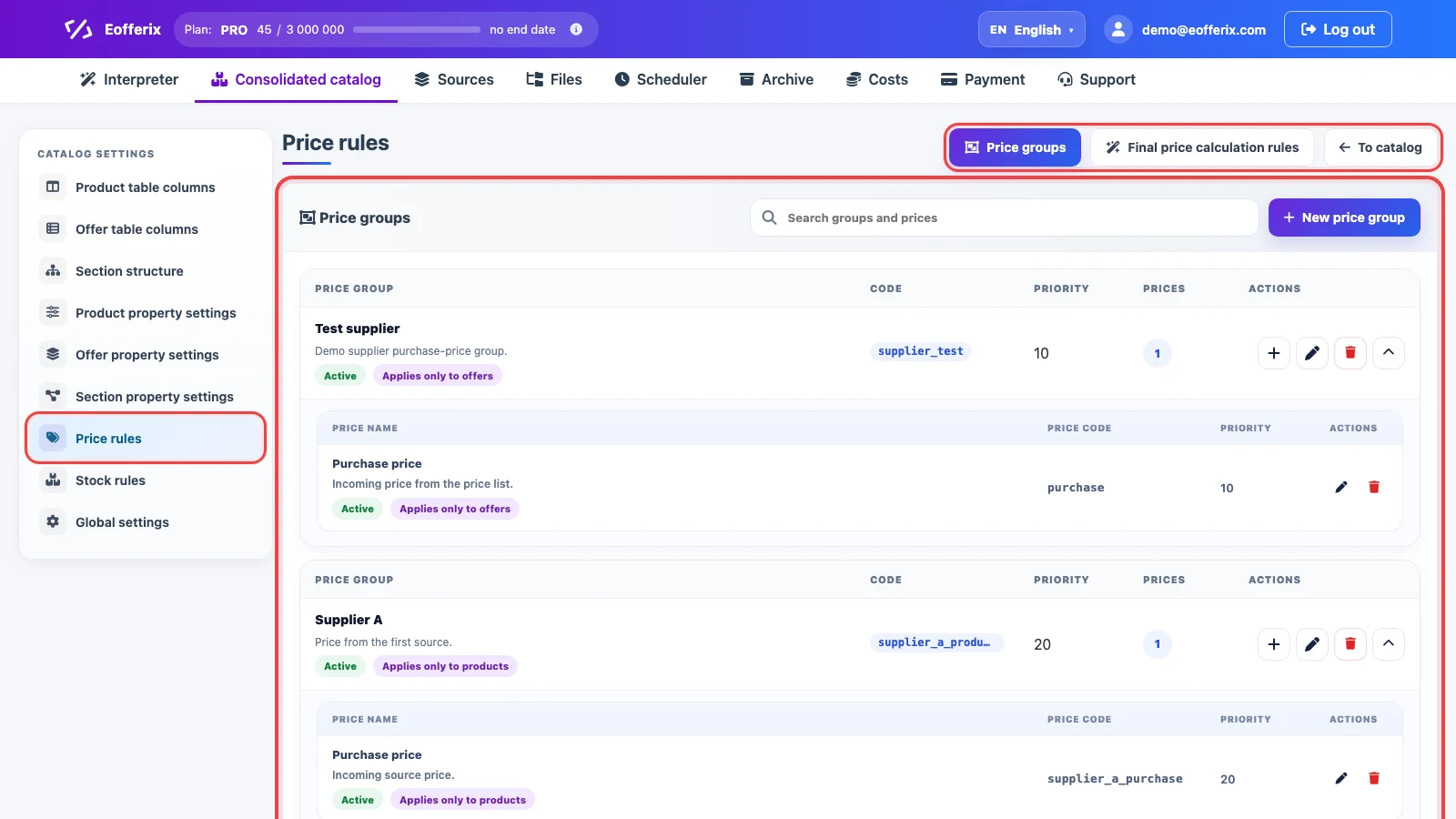
Open Consolidated catalog, click Settings, and go to Price rules. The page has two main areas: Price groups and Final price calculation rules.
Price groups and price types
A price group separates a source or pricing scenario: supplier, sales channel, marketplace, wholesale price list, or internal group. A price type describes the specific value inside the group: purchase, retail, sale, recommended, or another price.
On the Price groups tab, New price group creates a separate group, the plus button inside a group adds a new price type, the pencil opens editing, the trash button deletes an item, and the arrow collapses or expands the list of price types. Group and type order matters for scenarios based on priority.
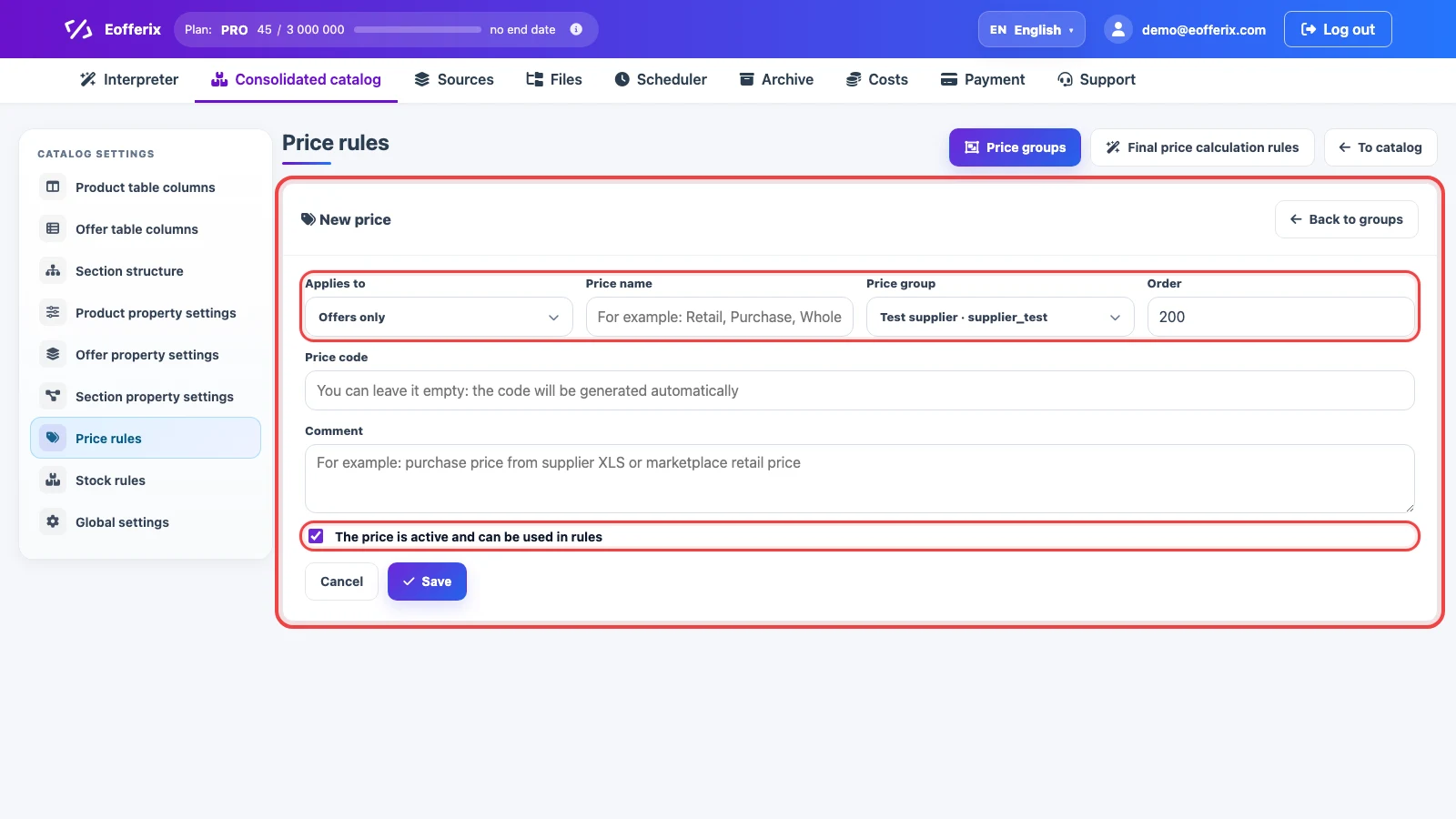
In the price type card, choose whether the price applies to products, offers, or both. The code is used by import, rules, and export. The active checkbox controls whether the price can participate in final price calculations.
Final price calculation rules
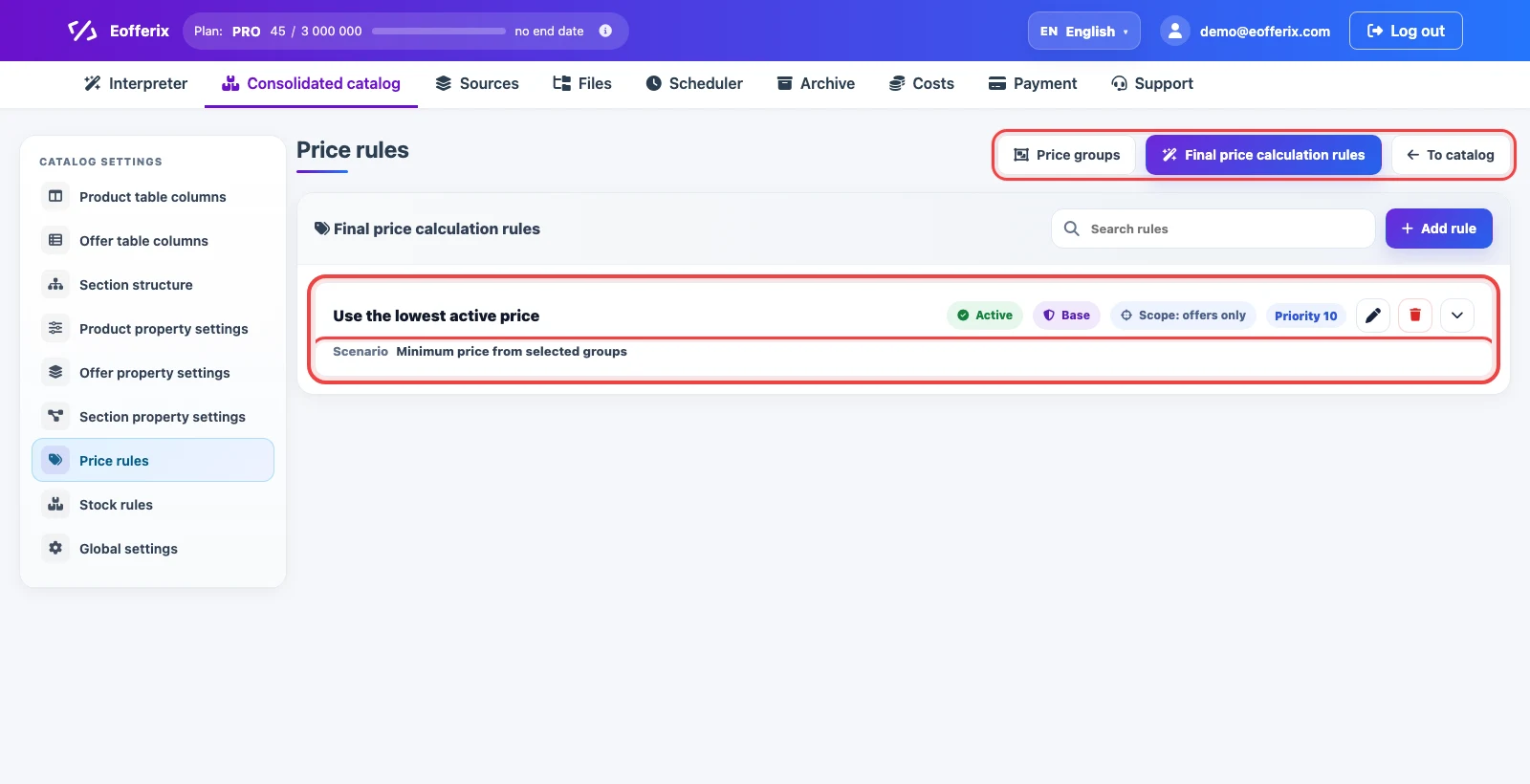
Open Final price calculation rules. The list shows the rule name, status, base-rule flag, scope, and priority. A base rule is the default calculation for the consolidated catalog when a more specific rule is not selected by conditions.
Add rule creates a new rule. The pencil edits it, the trash button deletes it, and the arrow expands a short summary of the selected scenario and settings.
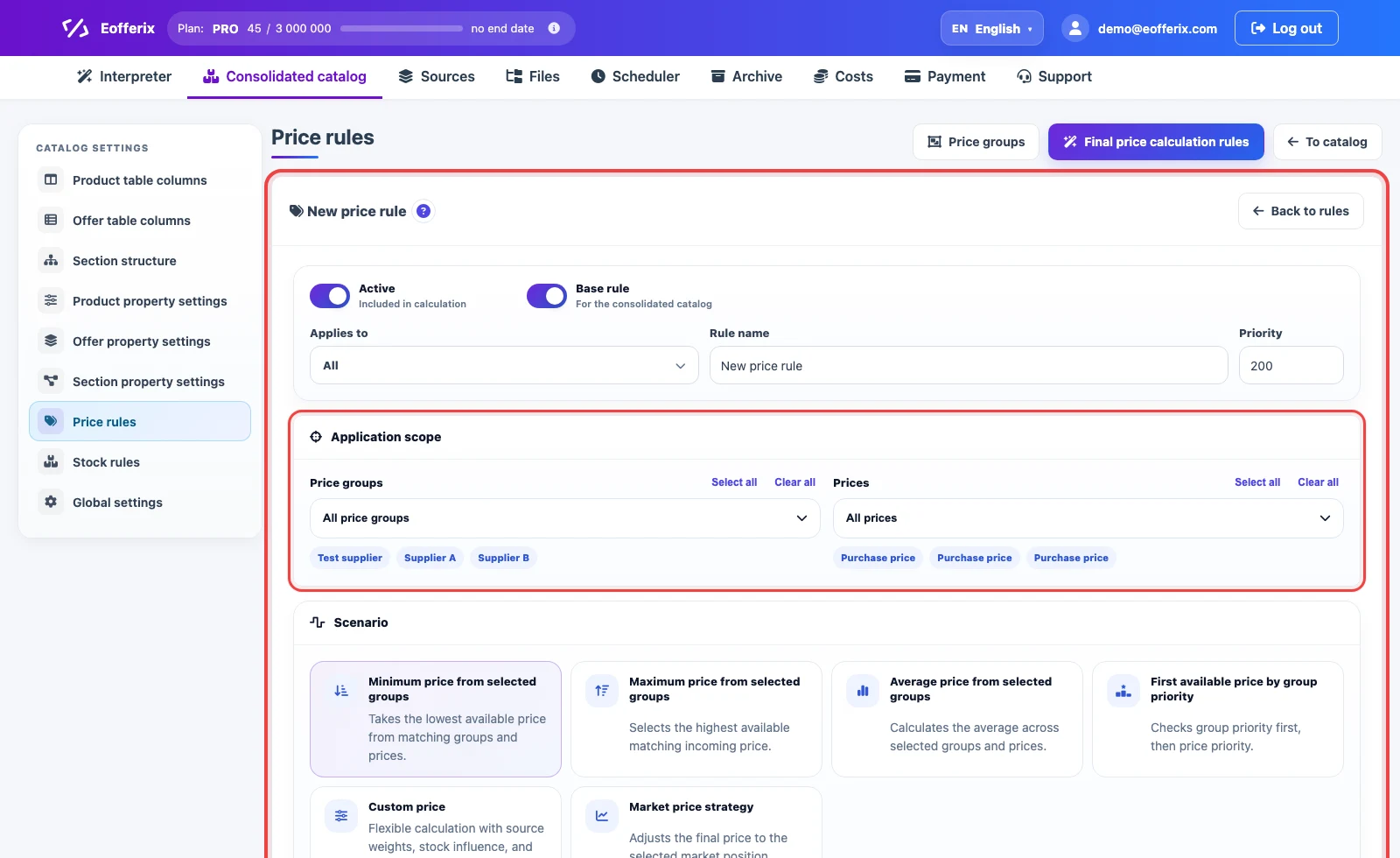
In the rule card, enable or disable the rule, choose whether it applies to products, offers, or the whole catalog, then set the name and priority. Lower priority numbers are checked earlier among rules of the same level.
In Application scope, choose the price groups and price types that can participate in the calculation. If all groups and all prices stay selected, the rule uses every matching active price. If you select specific groups or types, the calculation is limited to them.
What each calculation scenario means
The scenario defines how Eofferix selects the base price from all active prices included in the rule scope. Empty values, zeroes, and negative prices are not used in the calculation.
Minimum Price
Minimum price from selected groups uses the lowest active price among matching groups and types. If supplier A sends 120, supplier B sends 127, and supplier C sends 119, the base price becomes 119. Use it when the catalog must keep the most competitive incoming level or use the lowest purchase price.
Maximum Price
Maximum price from selected groups uses the highest active price. From 120, 127, and 119, the rule selects 127. This is useful when the final price should follow an upper boundary, for example a protected retail price or a channel where the result should not accidentally go below the expensive source.
Average Price
Average price from selected groups calculates the average of incoming prices. If source weights are not enabled, prices 100, 120, and 140 produce a base price of 120. When weights are enabled, a source with a higher weight affects the result more strongly.
First Available Price By Priority
First available price by group priority checks group order first, then price type order inside the group. If the priority group has no matching price, the rule moves to the next one. Use it when there is a main supplier or main price type, but a fallback is required.
Custom Price
Custom price calculates the price through source weights and, if needed, stock influence. First, the rule takes prices from selected groups and types, then removes invalid values. If source error protection is enabled, strong deviations from the average do not participate in the calculation. For example, if a supplier makes a catalog mistake and adds an extra digit or misses a digit, the price can change by 10 times. Eofferix compares the new value with the average market price across sources and does not use it in the final calculation.
Source weight controls how strongly a specific source affects the result. Suppliers are not always equal: you may have preferred suppliers or your own warehouse, as well as less preferred sources. For example, prices 100, 120, and 90 with weights 100, 300, and 50 produce (100 × 100 + 120 × 300 + 90 × 50) / (100 + 300 + 50) = 112.22. The source with weight 300 moves the final price more than the source with weight 50.
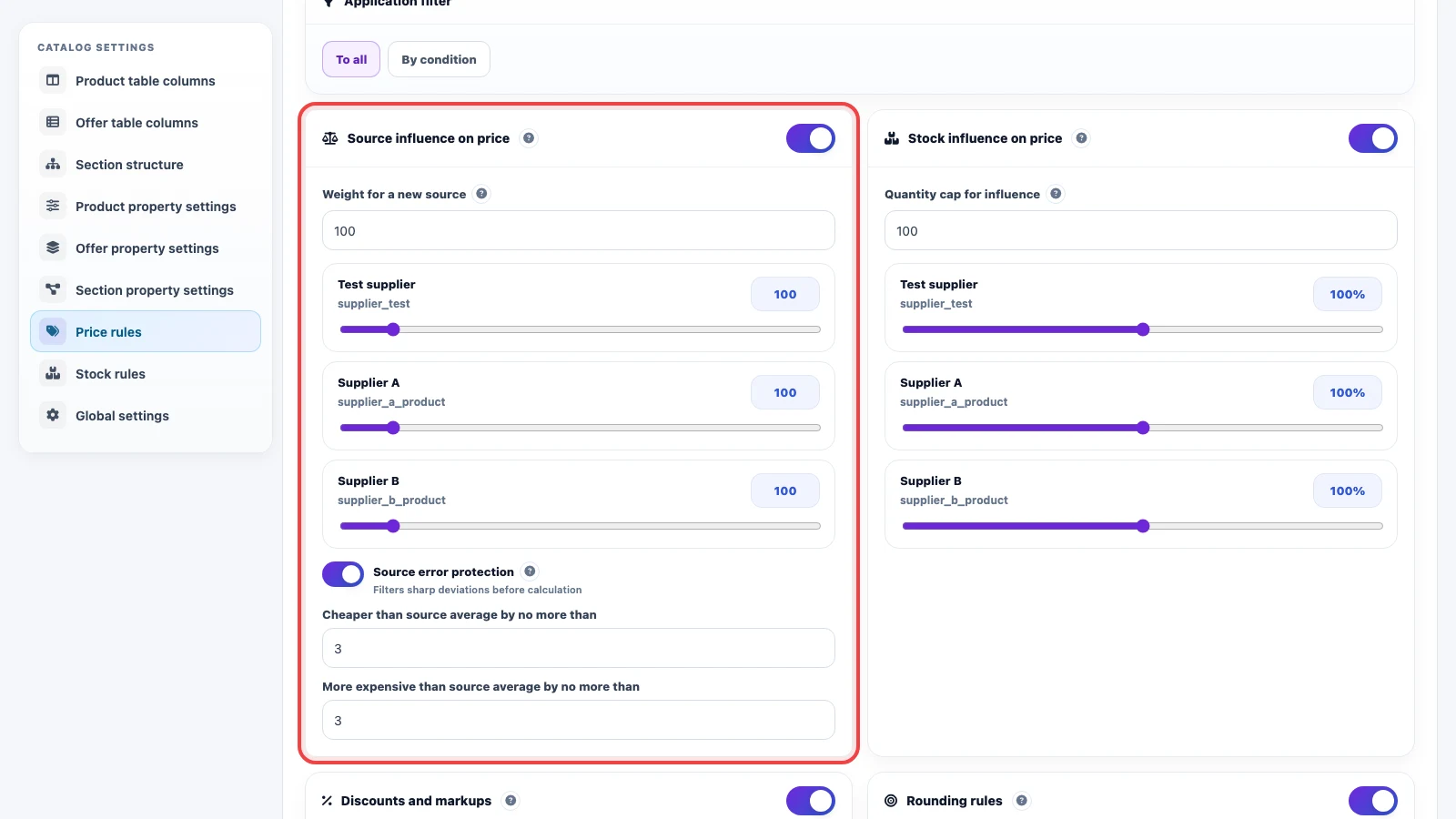
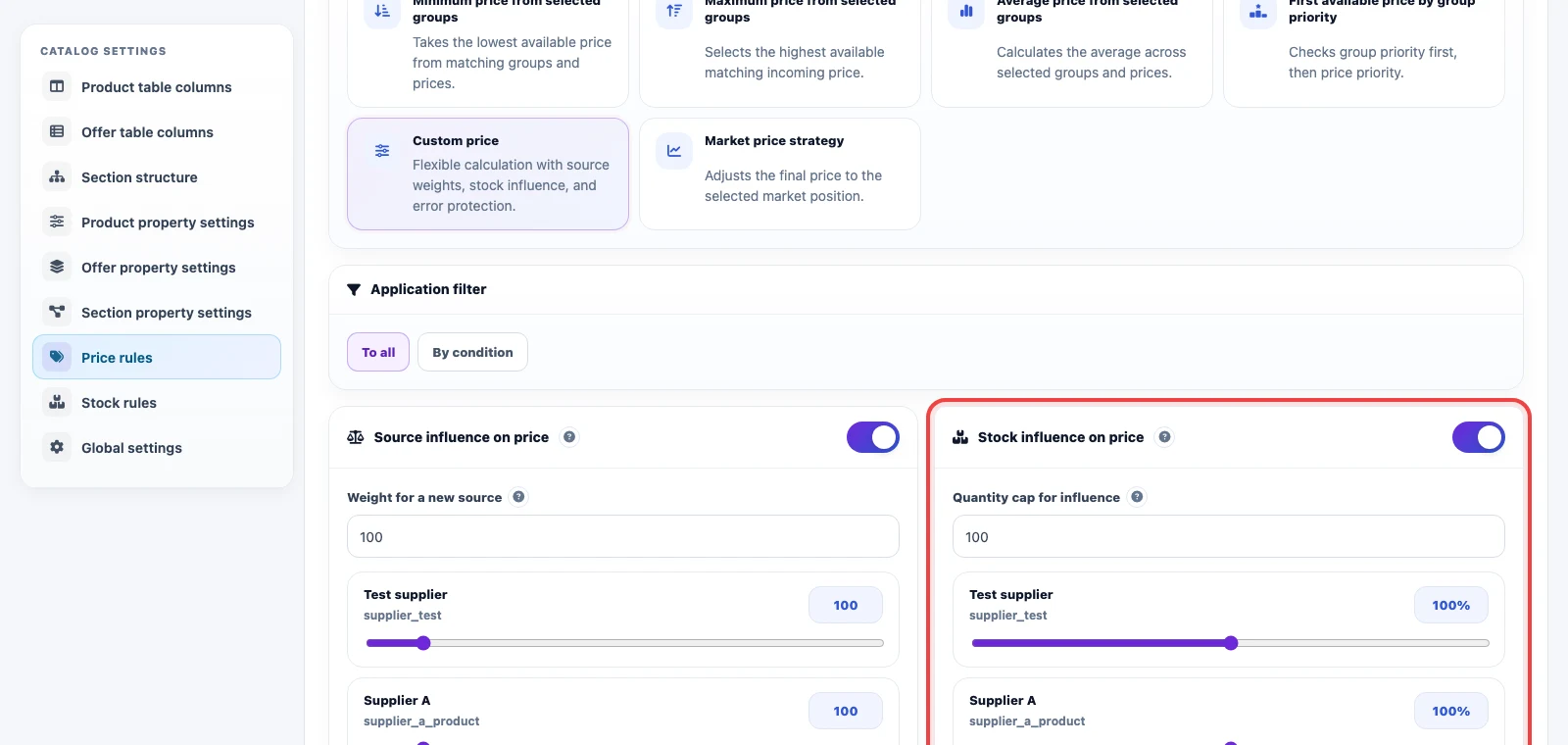
Stock influence adds another layer to the calculation: a source with a larger available quantity can receive a higher weight. Quantity cap for influence limits the stock level up to which quantity continues to strengthen the source. After the base price is calculated, the general discount, markup, and rounding settings still apply.
Market Price Strategy
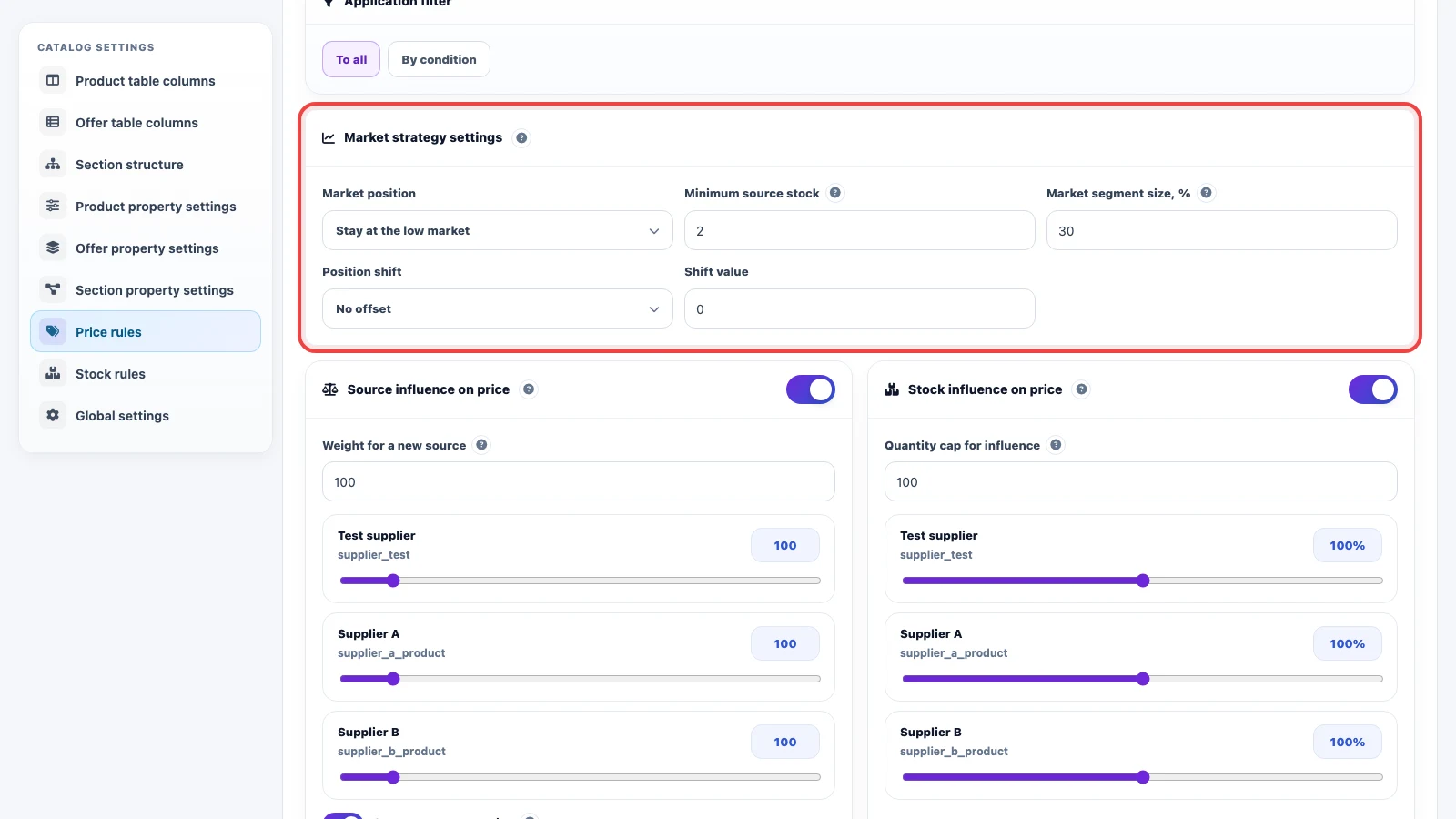
Market price strategy builds the price relative to source prices. Eofferix sorts matching prices from low to high, applies the minimum source stock setting, then selects the position: cheapest, low market, middle market, or high market. Market segment size defines which part of sources is included in the selected zone.
Example: source prices are 100, 105, 110, 130, and 150. If the position is “low market” and the segment is 40%, the rule looks at the lower part of the list, 100 and 105, and gets a base price around 102.50 before extra adjustments.
Position shift additionally moves the selected market price up or down. For example, if the low-market calculation gives 102.50 and the shift is “lower by 3%”, the price becomes 99.43 before general discounts, markups, and rounding. If “no shift” is selected, Eofferix uses the selected market segment price as is.
Adjustment, rounding, and filters
The application filter limits the rule to specific products or offers. For example, a rule can apply only to a brand, section, product type, or source.
Discounts and markups run after the base price is selected. The rule supports percentage markup, percentage discount, fixed markup, and fixed discount. Rounding rules run after the adjustment: choose the rounding step, direction, and an optional value to subtract after rounding.
Example setup
Suppose the same item arrives from three suppliers. For offers, you need to take the lowest purchase price, add 20%, and round to 10. Create a price group for each supplier, add the “Purchase price” type to each group, then create an offer rule: scenario “Minimum price”, scope limited to these groups and price types, adjustment “Markup 20%”, rounding step “10”.
If a separate channel needs different logic, create another rule with a higher priority. For example, products in a clearance section can still use the minimum price, but apply a discount instead of a markup.